
Schedule Overview
Viewing Provider Schedules #
The Schedule screen displays calendars by configured scheduling resource. A resource can be associated with a provider, but the Provider record and scheduling resource are separate records in Phoenix.
Keyboard shortcuts: Press Ctrl+S to open the Scheduler.
Open the Schedule #
- Select the Schedule tab on the Phoenix ribbon.
- In the Appointment group, select Schedule.
- Confirm the date shown above the time grid.
Choose schedules to display #
Use View Resources above the grid to choose the configured resources you want to see. Review Group By; the current screen displays Resource.
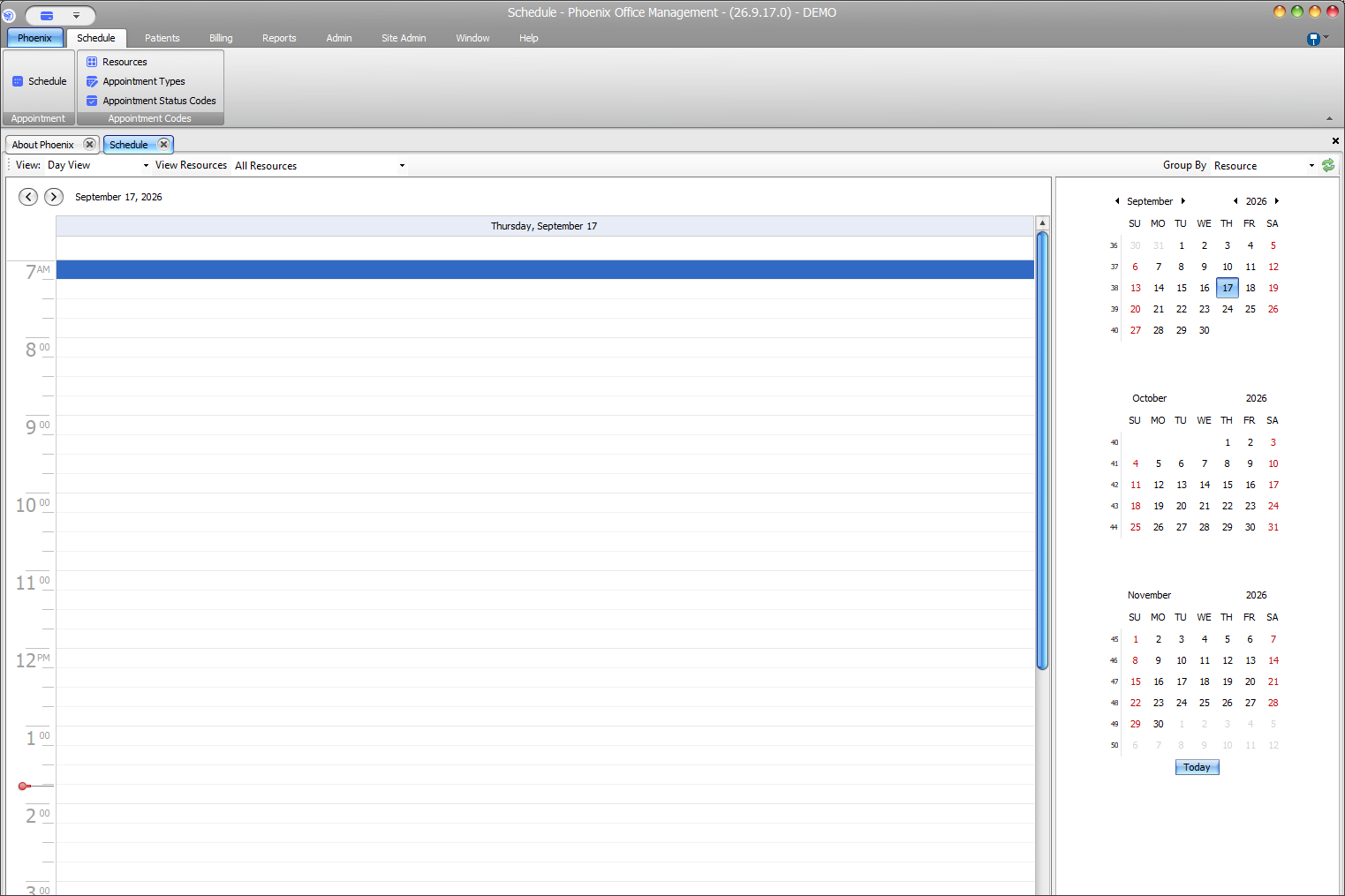
After changing a selection #
- Confirm the intended date is displayed.
- Confirm the intended resource or resources are included.
- Check that the expected time range appears.
- Verify Group By is appropriate for the view.
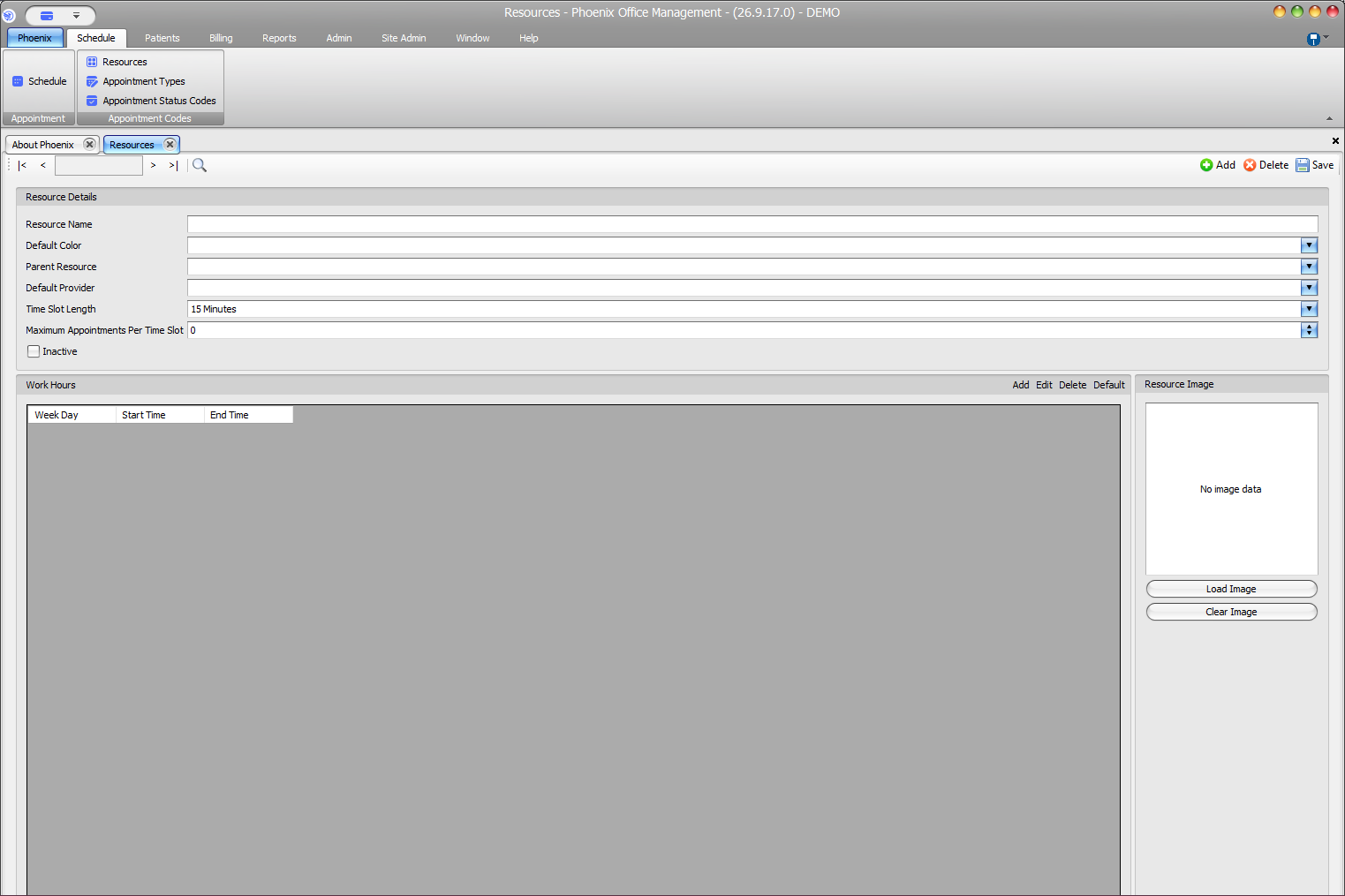
Provider records and schedule resources #
Provider contact and billing information is maintained under Billing → Providers. Scheduling availability is configured under Schedule → Resources.
- Resource Name
- Parent Resource
- Default Provider
- Time Slot Length
- Maximum Appointments Per Time Slot
- Inactive
- Work Hours
Adding or updating a provider does not by itself create a visible scheduling resource.
If a provider schedule is missing #
- Confirm the correct date and View Resources selection.
- Confirm the resource is not hidden by the current view.
- Ask an authorized user to review Default Provider, Inactive, and Work Hours on the Resources record.
- If the resource is configured but still absent, record the provider name, resource name, date, and current view before contacting PSS support.
Setup matters: Do not add or change resources simply to make a schedule appear unless you are authorized to maintain scheduling setup.