
Schedule Overview
Navigating Dates #
The Schedule screen provides several ways to move to the date you need. Always verify the date heading before viewing or changing appointments.
Keyboard shortcuts: Press Ctrl+S to open the Scheduler.
Move through the calendar #
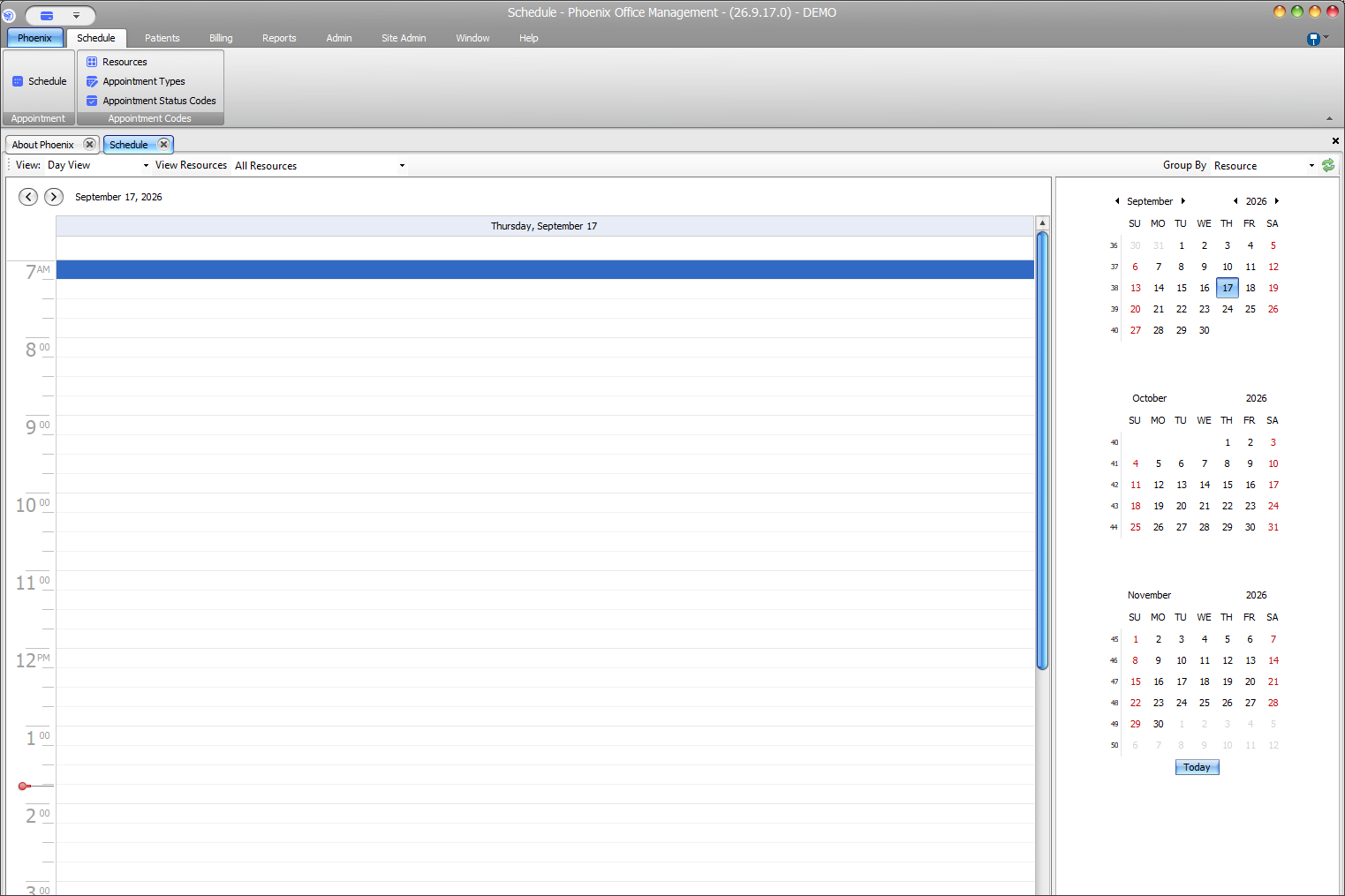
Use the left and right arrow buttons above the schedule grid to move backward or forward from the displayed date.
Select a date from the calendars #
- Locate the mini calendars on the right side of the Schedule screen.
- Use the month or year arrows when the needed date is outside the visible months.
- Select the date.
- Confirm that the heading above the schedule grid shows the intended date.
Return to today #
Select Today below the mini calendars to return to the current date. Confirm the heading after selecting it.
Avoid working on the wrong date #
Before adding, moving, or reviewing an appointment, check:
- The full date above the schedule grid
- The selected resources
- The current view and Group By setting
Remember: A visually empty schedule may reflect the wrong date or resource selection rather than missing appointment data.