
Schedule Overview
Understanding Schedule Views #
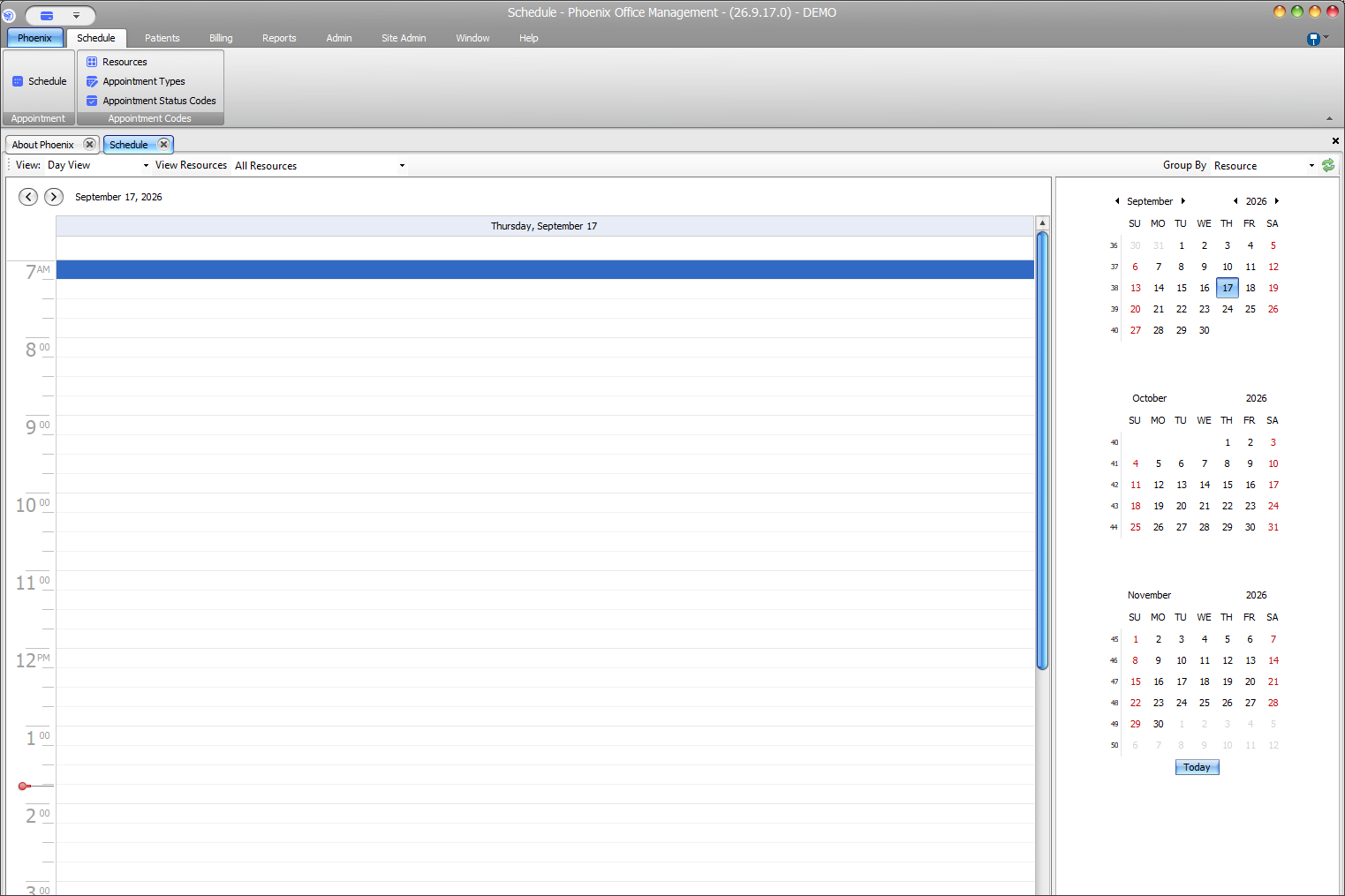
The Schedule screen combines a calendar view with resource and grouping controls. Review these settings before interpreting the appointment grid.
Keyboard shortcuts: Press Ctrl+S to open the Scheduler.
Main schedule controls #
- View controls the schedule layout. The current screen displays Day View.
- View Resources controls which configured resources appear.
- Group By controls how displayed schedule information is organized.
- The date heading identifies the day shown in the main grid.
- The vertical time scale shows appointment times.
- The mini calendars provide date navigation.
- Today returns to the current date.
Available choices can vary with the practice’s configuration and resource setup.
Read the day view #
In Day View, time moves down the grid. The resource selection determines whose or which schedule is displayed. Confirm both the date and resources before deciding that an appointment is missing.
Change the view safely #
- Note the current date.
- Select the needed view when more than one option is available.
- Choose the intended resources.
- Review the Group By setting.
- Confirm the heading and grid before making scheduling changes.
Quick check: Verify the date, resource selection, view, and Group By setting before interpreting an empty schedule.