Permissions
Understanding Phoenix Security Settings #
Phoenix uses several layers of security to control both which practices a user can access and what that user can do within each practice.
These permissions fall into two broad categories:
Practice-level security controls access and permissions within an individual practice.
System-level security controls administrative functions that apply to the overall Phoenix environment, whether Phoenix is hosted or installed on an on-premises server.
Phoenix provides four distinct areas for managing security:
- Security Profile
- Practice Administrator
- Database Administrator
- Security Administrator

Permissions
Security Profile #
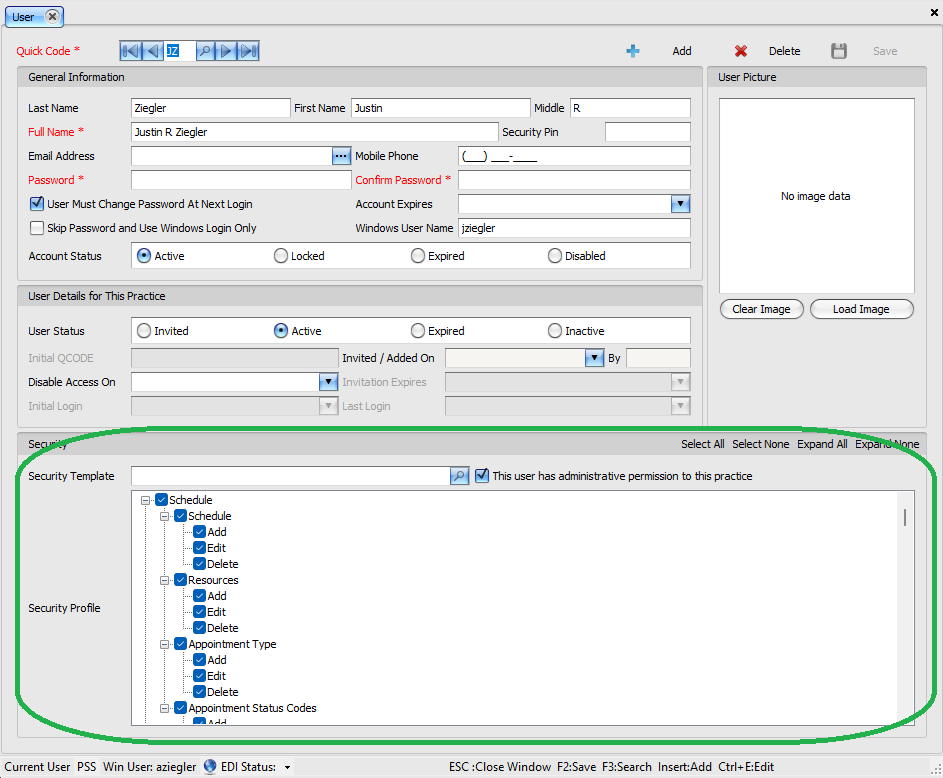
The Security Profile is used for the majority of Phoenix users.
Security Profiles are practice-specific and allow you to control access at a detailed level. Depending on the area of Phoenix, you can determine whether a user is allowed to:
- View
- Add
- Edit
- Delete
- Use other special functions
The Security Profile follows the Phoenix menu structure, making it easier to locate and configure permissions for specific areas of the program.
Because Security Profiles are practice-specific, the same user can have different permissions in different practices.
For example, a billing employee could have full billing permissions in one practice while having limited access in another.
For most day-to-day Phoenix users, the Security Profile is the primary place where their permissions are configured.
Permissions
Practice Administrator #
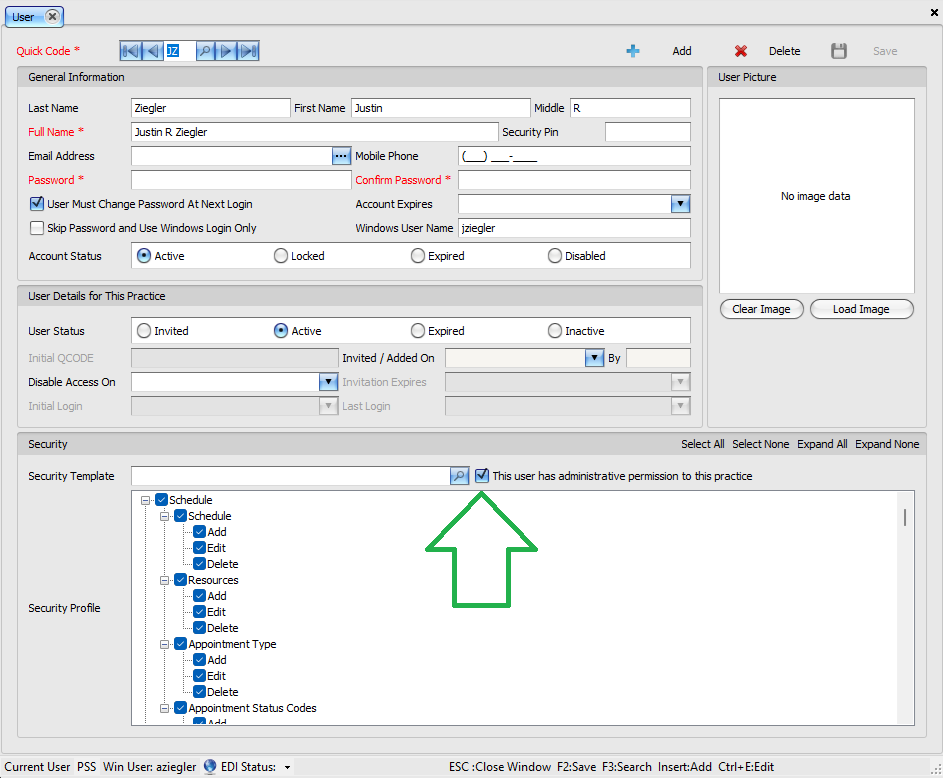
A Practice Administrator has broad administrative access within a specific practice.
When a user is designated as a Practice Administrator, Phoenix ignores that user’s normal Security Profile while they are working in that practice and instead grants access to virtually all practice-specific areas of the program.
Practice Administrators can also access the User Administration screen for that practice.
However, Practice Administrator permissions apply only to the practice where they are assigned.
A Practice Administrator cannot:
- View the complete list of users in the Phoenix environment
- Add, remove, or convert practice databases
- Automatically access other practices
A user can be a Practice Administrator in one practice and a standard user in another.
When should someone be a Practice Administrator? #
This role is appropriate for a trusted user who needs broad control within a particular practice, such as an office manager
permissions
Database Administrator #
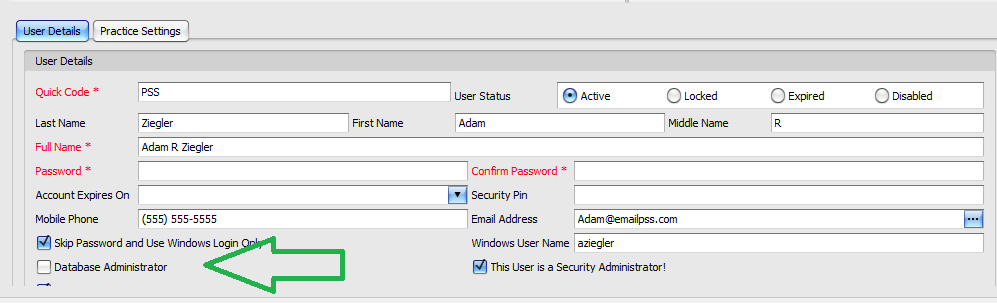
The Database Administrator permission controls database-management functions that apply to the Phoenix environment rather than to an individual practice.
These functions include:
- Database Options, including switching servers
- Creating a new practice
- Browsing for existing practices
- Converting practices
- Removing practices
Because these functions exist outside the scope of an individual practice, they are controlled by the Database Administrator permission under Site Administration.
Database Administrator permissions do not automatically provide access to the data within those practices.
When should someone be a Database Administrator? #
This permission is generally intended for the person responsible for maintaining practice databases.
Depending on the environment, this may be an office manager, IT administrator, reseller, or another person responsible for managing the Phoenix installation and its databases.
permissions
Security Administrator #
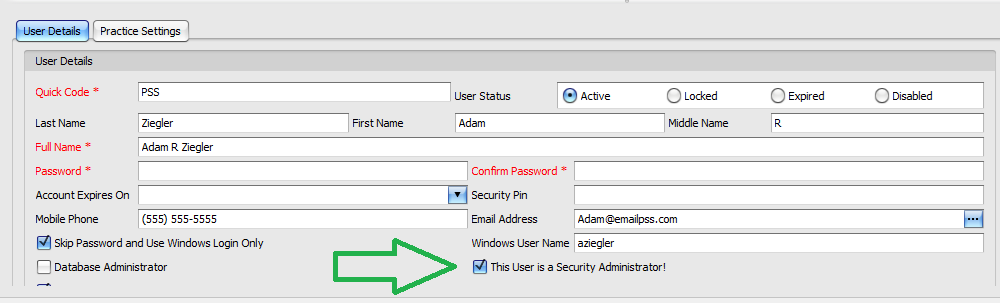
The Security Administrator manages users across the Phoenix environment.
A Security Administrator can:
- Add users
- Edit users
- Delete users
- Assign users to specific practices
- Remove a user’s access to specific practices
The first user created during the initial Phoenix registration process is assigned Security Administrator permissions.
Security Administrator permissions do not automatically grant access to the data within any practice.
For example, an IT administrator may be responsible for creating accounts, resetting access, and assigning users to practices without needing permission to log into those practices themselves.

permissions
Security Permissions at a Glance #
| Task | Required Permission |
|---|---|
| Configure detailed permissions within a practice | Security Profile |
| Access virtually all areas within one practice | Practice Administrator |
| Access the User Administration screen for a practice | Practice Administrator or a user with the appropriate Admin > Users permission |
| Add, remove, or convert practice databases | Database Administrator |
| Add, edit, or delete users across the Phoenix environment | Security Administrator |
| Assign which practices a user can access | Security Administrator |
| Add a user to a specific practice | Security Administrator, that practice’s Practice Administrator, or a practice user with the appropriate Admin > Users permission |
One important distinction is that no single role automatically grants login access to every practice. Practice access and administrative permissions are intentionally controlled separately.
Permisions
Quick Summary #
A simple way to think about Phoenix security is:
Security Profile
What can this user do inside this practice?
Practice Administrator
Should this user have broad administrative access within this particular practice?
Database Administrator
Can this user add, remove, or convert practice databases?
Security Administrator
Can this user manage Phoenix users and determine which practices they are allowed to access?
By separating practice-level and system-level responsibilities, Phoenix allows organizations to give each user the access they need without automatically granting permissions outside their role.