
Appointments
Use Appointment Details to review a booking #
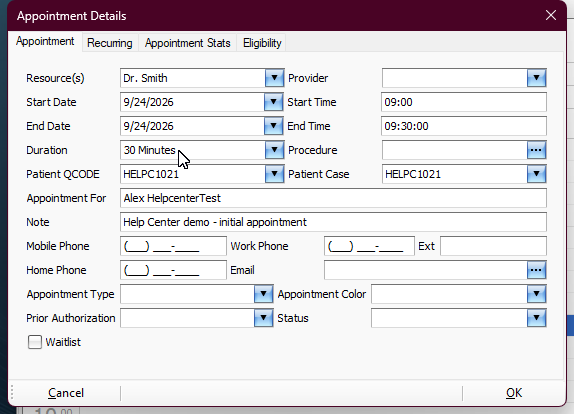
Appointment Details is the main window for reviewing the information attached to an appointment. Use it when creating a visit, checking a saved appointment, or making an approved scheduling change.
Keyboard shortcuts: Press Ctrl+S to open the Scheduler. In a form, press F2 to save and Esc to close.
- Open Schedule and go to the appointment’s date.
- Double-click the appointment to open Appointment Details.
- Confirm the patient before reviewing or changing the rest of the booking.
If you only need to review the appointment, you can close the window with Cancel after checking the information.
Appointments
Check the patient and schedule #
The top portion of Appointment Details identifies who and what is being scheduled.
- Patient QCODE identifies the selected patient and provides access to patient lookup.
- Patient Case shows the case connected to the appointment. Review it when the patient has more than one billing context.
- Resource(s) identifies the schedule being booked, such as the provider or other schedulable resource.
- Provider is a separate field. Do not assume the resource and provider always mean the same thing.
Confirm these fields before changing dates or times so you do not accidentally edit the wrong appointment.
Appointments
Review dates, times, and visit details #
- Start Date and End Date define the appointment’s date range.
- Start Time, End Time, and Duration describe when the visit is scheduled.
- Appointment Type and Status describe the kind of appointment and its current scheduling status according to your office setup.
- Appointment For displays the appointment’s patient-facing label in the demonstrated workflow.
- Note stores a scheduling note that can be displayed with the appointment on the calendar.
Important: when changing a time, check both the start and end time. Do not assume one field automatically changes the other.
Save only after reviewing the appointment #
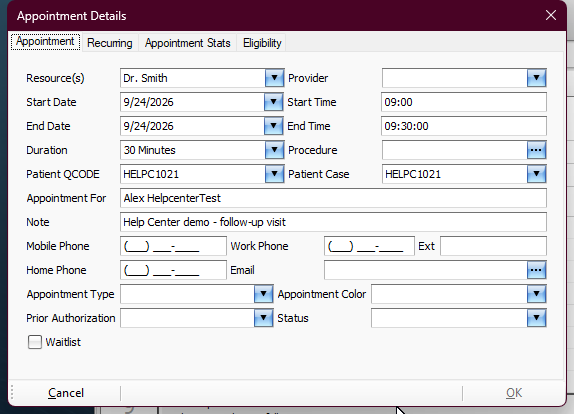
After making an intended change, click OK, return to the calendar, and confirm that the appointment appears under the expected date, time, and resource. Reopen it when you need to verify the exact saved values.
If you opened an appointment only to review it, OK may be unavailable until something changes. Use Cancel to return to the schedule without making an edit.