
Scheduling · Appointments
Rescheduling an Appointment #
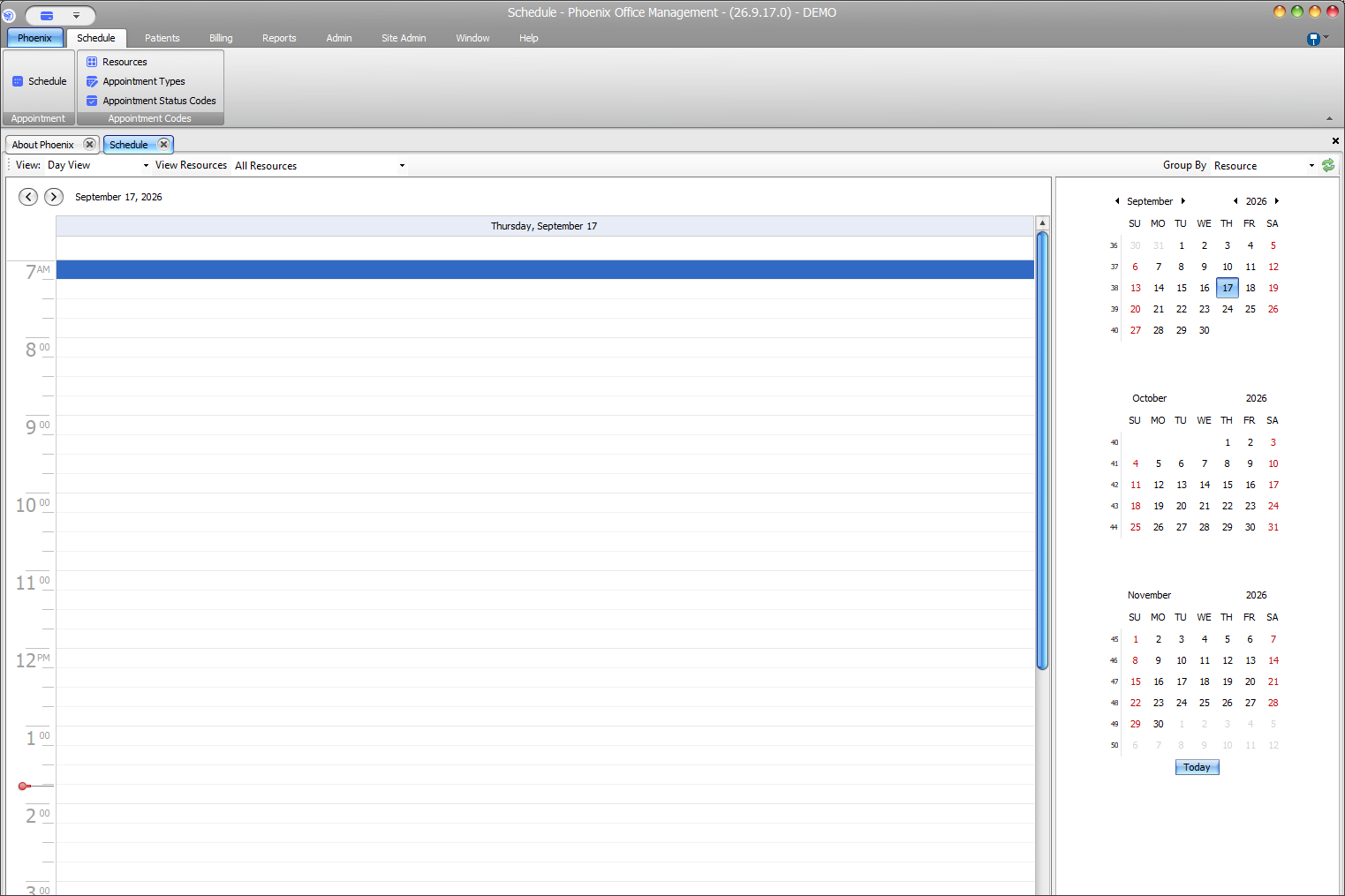
Rescheduling changes when an existing appointment will occur. Phoenix workflows can support editing date/time information, and schedule views may also support moving appointments between visible slots.
Before you begin #
- Locate the existing appointment.
- Confirm the new date, time, and resource/provider.
- Check the full appointment duration before moving it.
What to do #
- Open the appointment or use the verified scheduling move workflow available to your practice.
- Change the appointment to the intended date and time.
- Check both the start and end values; do not review only the start time.
- Confirm the provider/resource still matches the intended visit.
- Save the change and locate the appointment in its new position.
Verify before you finish #
- The appointment appears on the intended date.
- Start and end times are both correct.
- The duration was preserved unless you intentionally changed it.
- The original slot no longer shows the appointment as if it were still scheduled there.
Important
When rescheduling, always check both start and end times. Prior Phoenix verification showed that date-field and drag-and-drop moves can preserve a 30-minute appointment length, but the final values should still be reviewed.
Related information #
Use the related Phoenix Help articles for the patient, insurance, scheduler, appointment status, and provider workflows when the issue crosses more than one area.