
Scheduling · Troubleshooting
Provider Does Not Appear #
Phoenix keeps billing provider records and scheduling resource records on separate screens. Check both records to locate a setup mismatch.
Keyboard shortcuts: Press Ctrl+S to open the Scheduler.
1. Check the provider record #
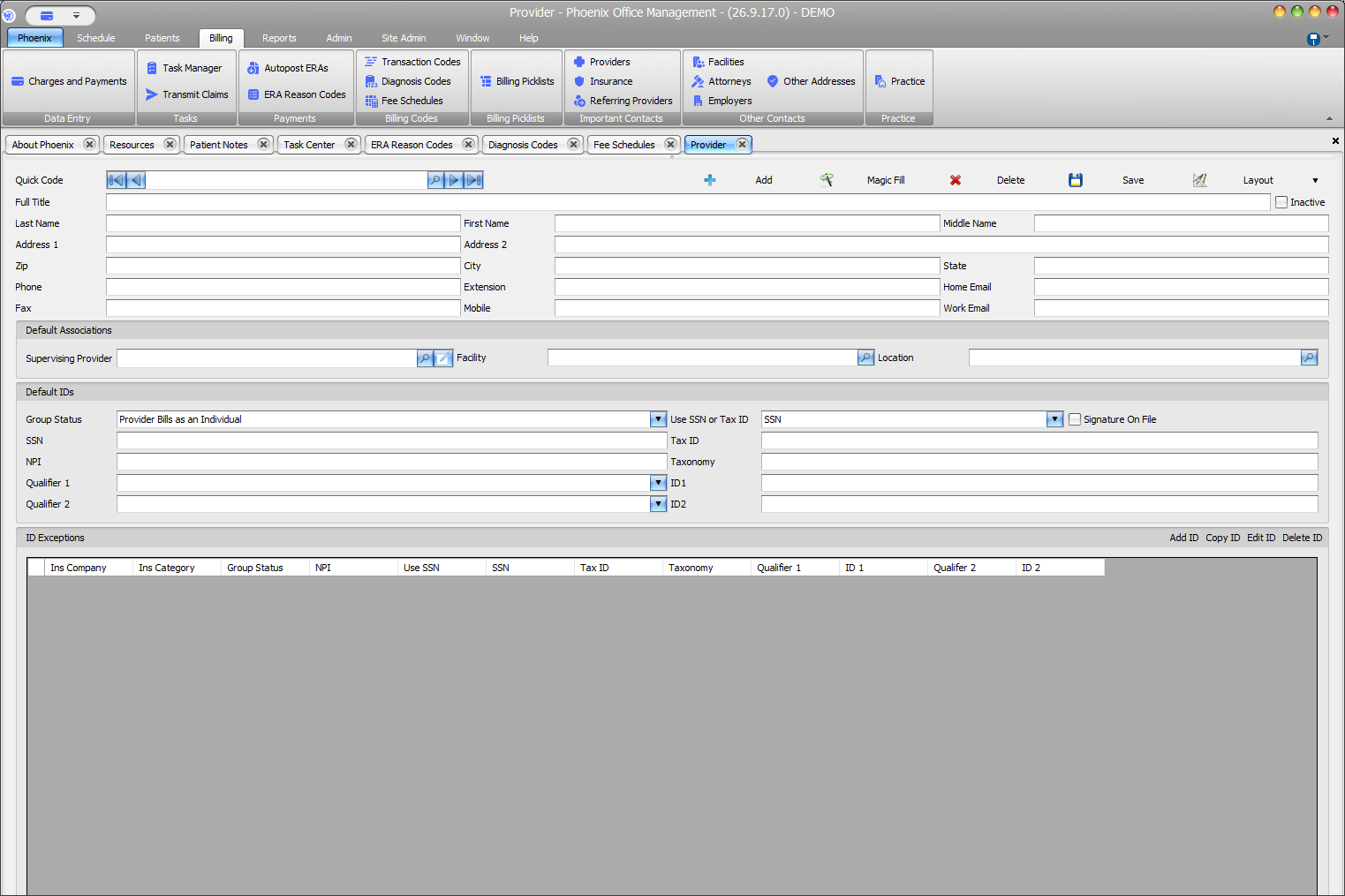
- Select Billing > Providers.
- Use Search to find the provider.
- Confirm the displayed name is the intended provider.
- Confirm that Inactive is not selected.
The Provider screen identifies the billing provider record and stores its associations and IDs.
2. Check the scheduling resource #
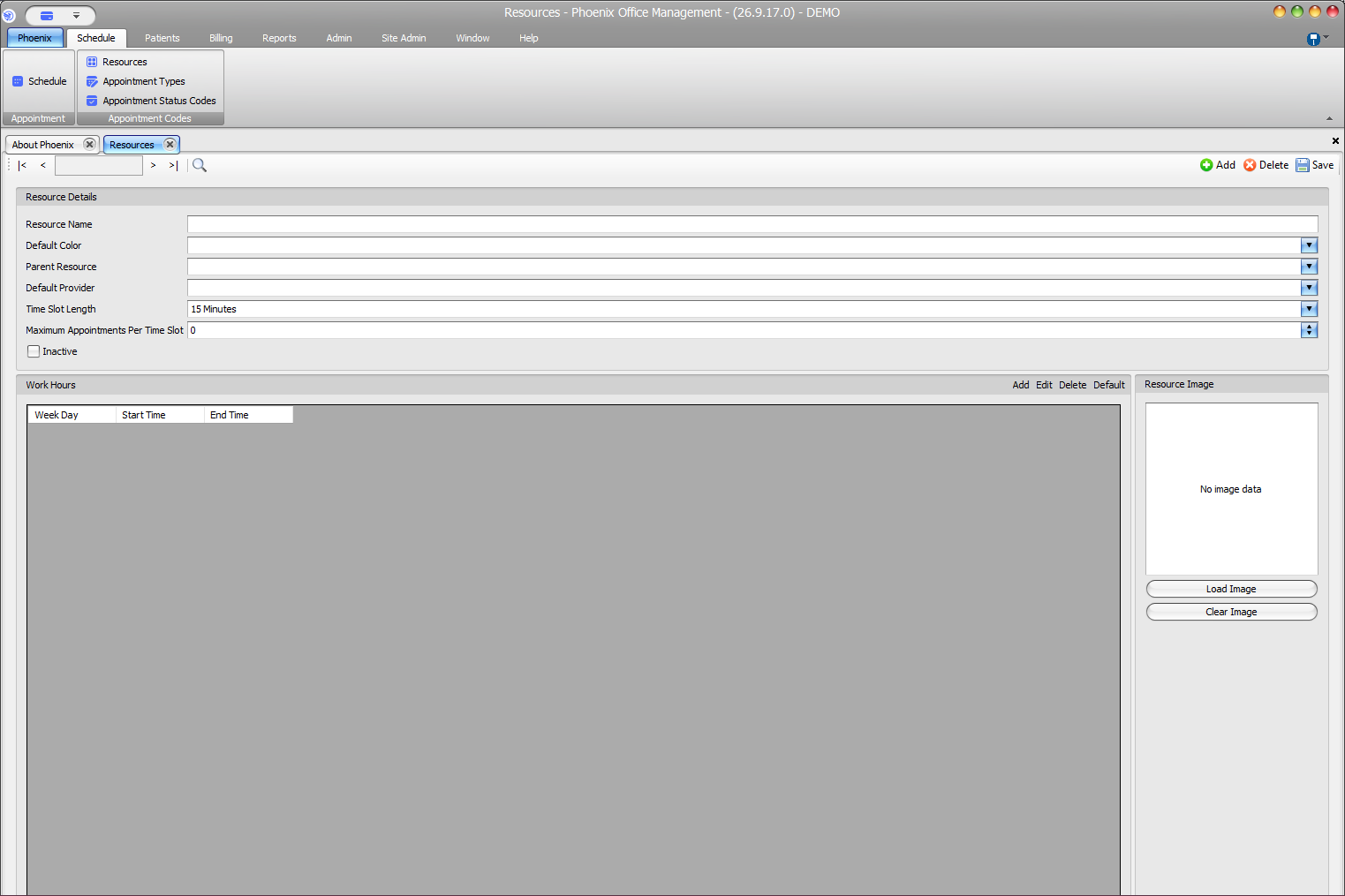
- Select Schedule > Resources.
- Use Search to find the scheduling resource.
- Confirm the Resource Name.
- Confirm Default Provider points to the intended provider.
- Confirm that Inactive is not selected.
- Review Work Hours if configured hours are expected.
Resolve the mismatch #
If the provider exists but no corresponding resource can be found, the billing provider record and scheduling setup do not match. If a resource exists, compare its Resource Name and Default Provider with the billing record. Make changes only after confirming the intended setup, then select Save.
Provider and resource are separate records
Adding a billing provider does not establish that a matching scheduling resource exists. Check both screens before concluding that the provider record is missing.