
Scheduling · Troubleshooting
Patient Does Not Appear in Scheduling #
First confirm the patient record, then confirm the scheduler context. Do not create another patient until you have ruled out an existing record.
Keyboard shortcuts: Press Ctrl+S to open the Scheduler.
1. Confirm the patient record #
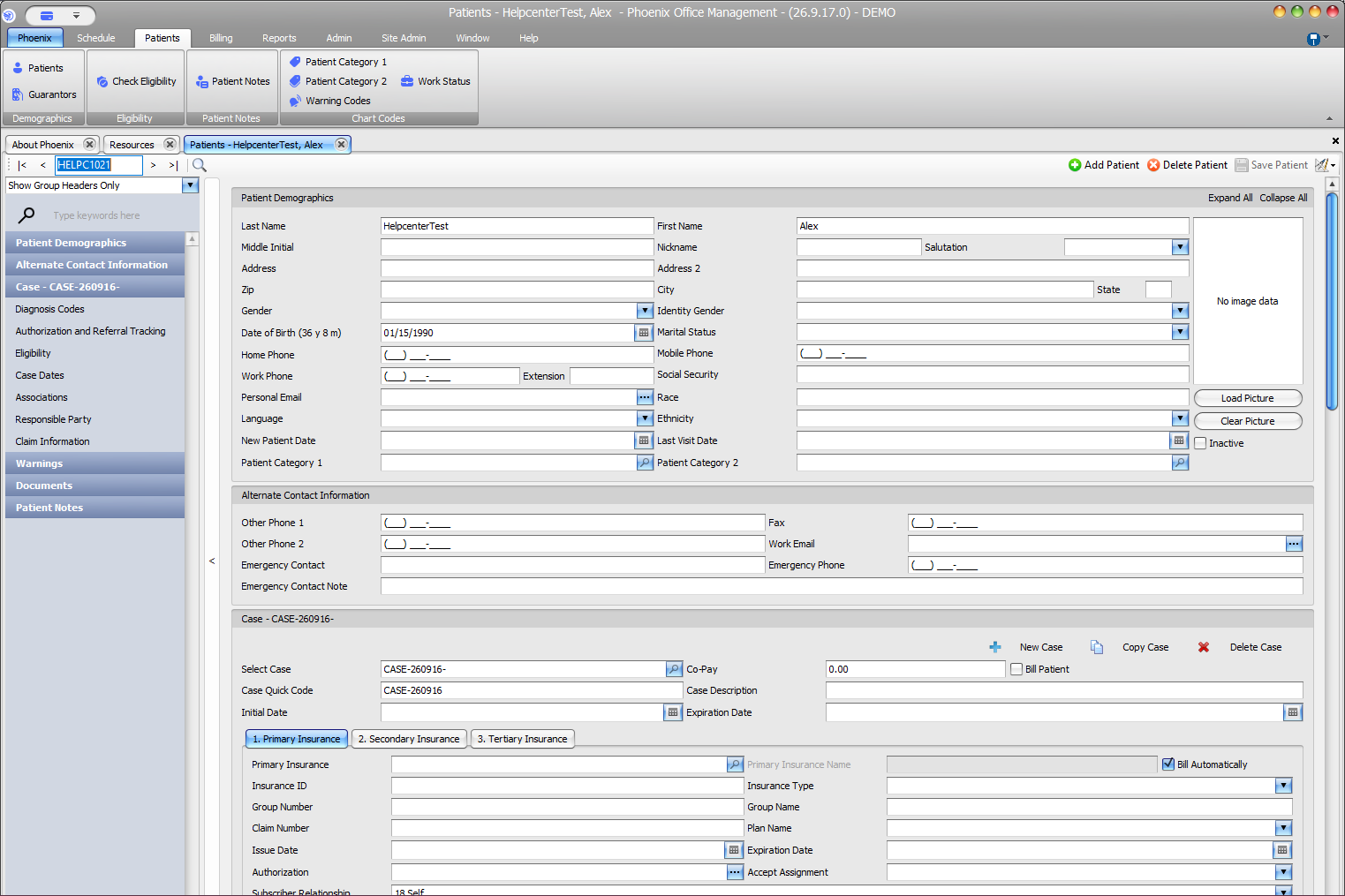
- Select Patients > Patients.
- Use patient search or the record navigation controls.
- Confirm Quick Code, Last Name, First Name, and Date of Birth.
- Check whether Inactive is selected.
- Search alternate spellings or prior names according to your practice’s identity-verification policy.
2. Confirm the scheduler context #
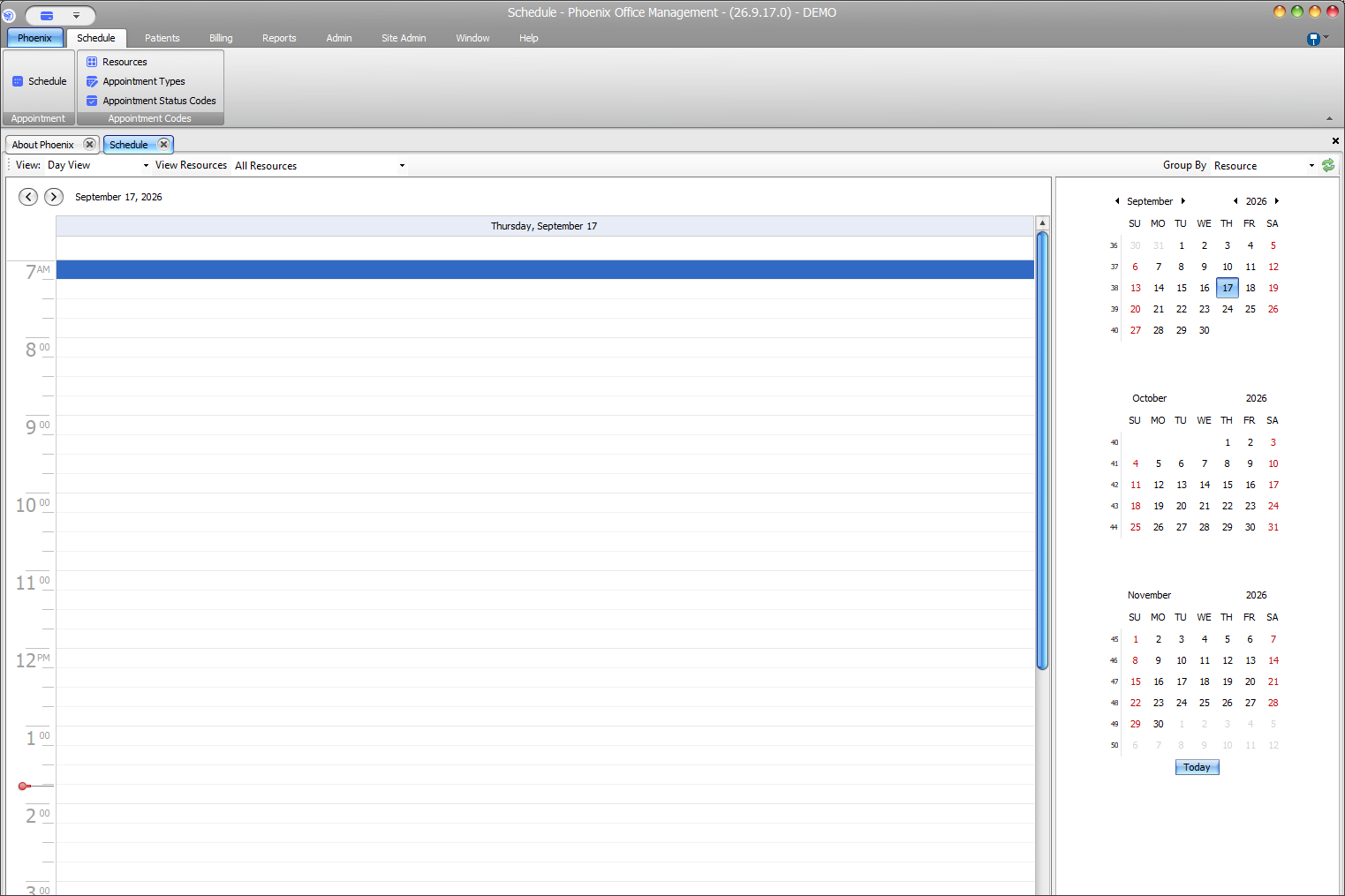
- Open Schedule > Schedule.
- Verify the date above the grid.
- Review View Resources.
- Review Group By.
- Confirm that the intended resource is displayed.
An empty schedule or a missing appointment can result from viewing the wrong date or resource. These checks do not change the patient record.
Avoid duplicate patient records #
Do not select Add Patient solely because a patient is missing from a scheduling lookup. If you find a likely duplicate, stop and follow your practice’s duplicate-record procedure.
If the patient still does not appear
Record the patient Quick Code, name and date of birth, inactive status, schedule date, selected resources and grouping, the exact point where selection fails, and any Phoenix message. Share patient information only through an approved secure support channel.