
Practice configuration · Providers
NPI Information #
Phoenix provides an NPI field in both the Provider and Practice Data screens. Enter it at the level specified by current enrollment and payer documentation.
Keyboard shortcuts: In a form, press F2 to save and Esc to close. On data-entry-heavy screens, press Ctrl+↓ for the next layout group or Ctrl+↑ for the previous layout group.
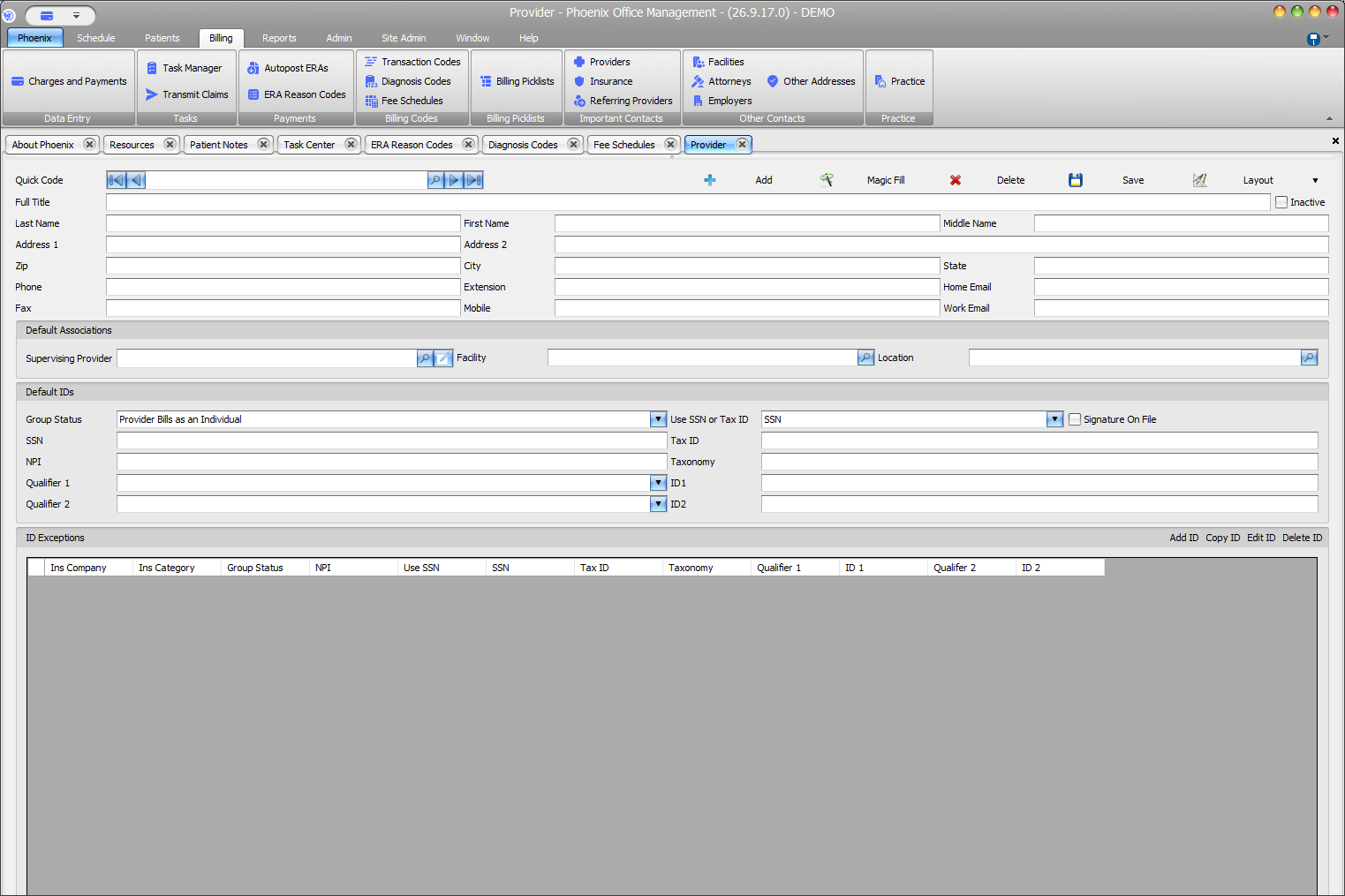
Provider NPI #
- Open Billing > Providers.
- Locate and verify the provider.
- Open the provider record.
- Review or enter NPI under Default IDs.
- Review Taxonomy and related identifiers when included in the change.
- Select Save.
Practice NPI #
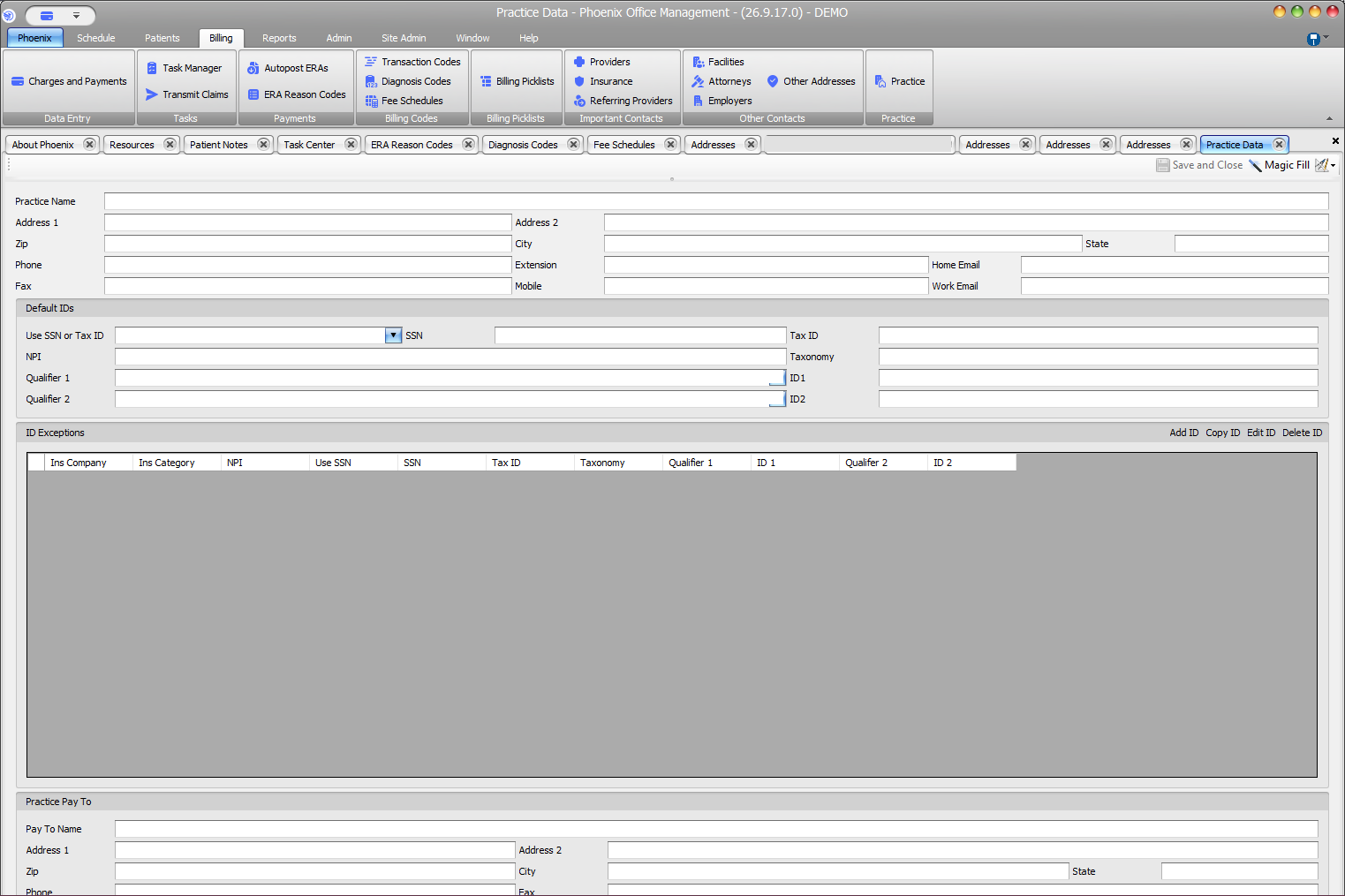
- Open Billing > Practice.
- Verify the Practice Name.
- Open the provider record.
- Review or enter NPI under Default IDs.
- Review Taxonomy and related identifiers.
- Select Save and Close.
Verify the correct level
Before saving an NPI, confirm that it belongs to the practice or provider record you are editing. Do not copy an NPI between levels unless approved documentation confirms it.