
Practice configuration · Providers
Adding Providers #
Use the Provider screen to create a provider record and enter contact, association, and identifier information.
Keyboard shortcuts: In a form, press F2 to save and Esc to close. On data-entry-heavy screens, press Ctrl+↓ for the next layout group or Ctrl+↑ for the previous layout group.
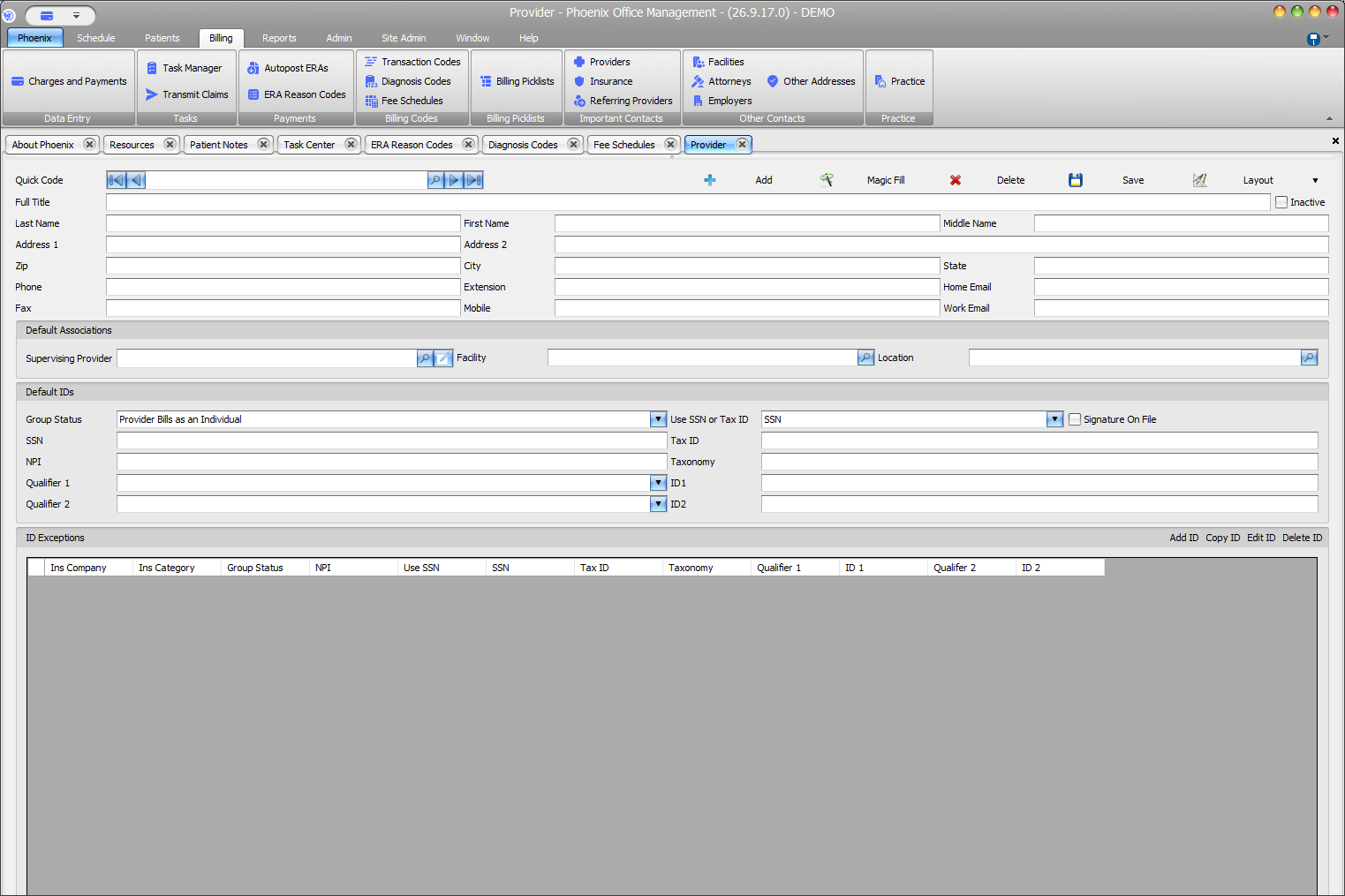
Add a provider #
- Select Billing > Providers.
- Select Add.
- Enter Full Title and provider name.
- Complete address and contact fields.
- Choose Supervising Provider, Facility, and Location when applicable.
- Review Group Status and Use SSN or Tax ID.
- Enter verified SSN, Tax ID, NPI, Taxonomy, and qualifier/ID values.
- Select Save.
Before saving #
- Verify spelling and identifying details.
- Confirm every association points to the intended record.
- Compare identifiers with an approved source.
- Leave unsupported fields blank rather than guessing.
- Review Signature On File only when the practice has confirmed the setting.
Protect sensitive identifiers
SSN and Tax ID are visible fields on the Provider screen. Follow your organization’s privacy and access procedures. Add an ID Exception only with payer- or category-specific instructions.