
Patients · Patient Records
Finding and Verifying a Patient #
Find the existing patient before creating a new record or changing patient information. Verifying the patient first helps prevent duplicate records and changes to the wrong account.
Keyboard shortcuts: In a lookup field, press F3 for Lookup, Insert for Quick Add, or Ctrl+E for Quick Edit.
Open patient lookup #
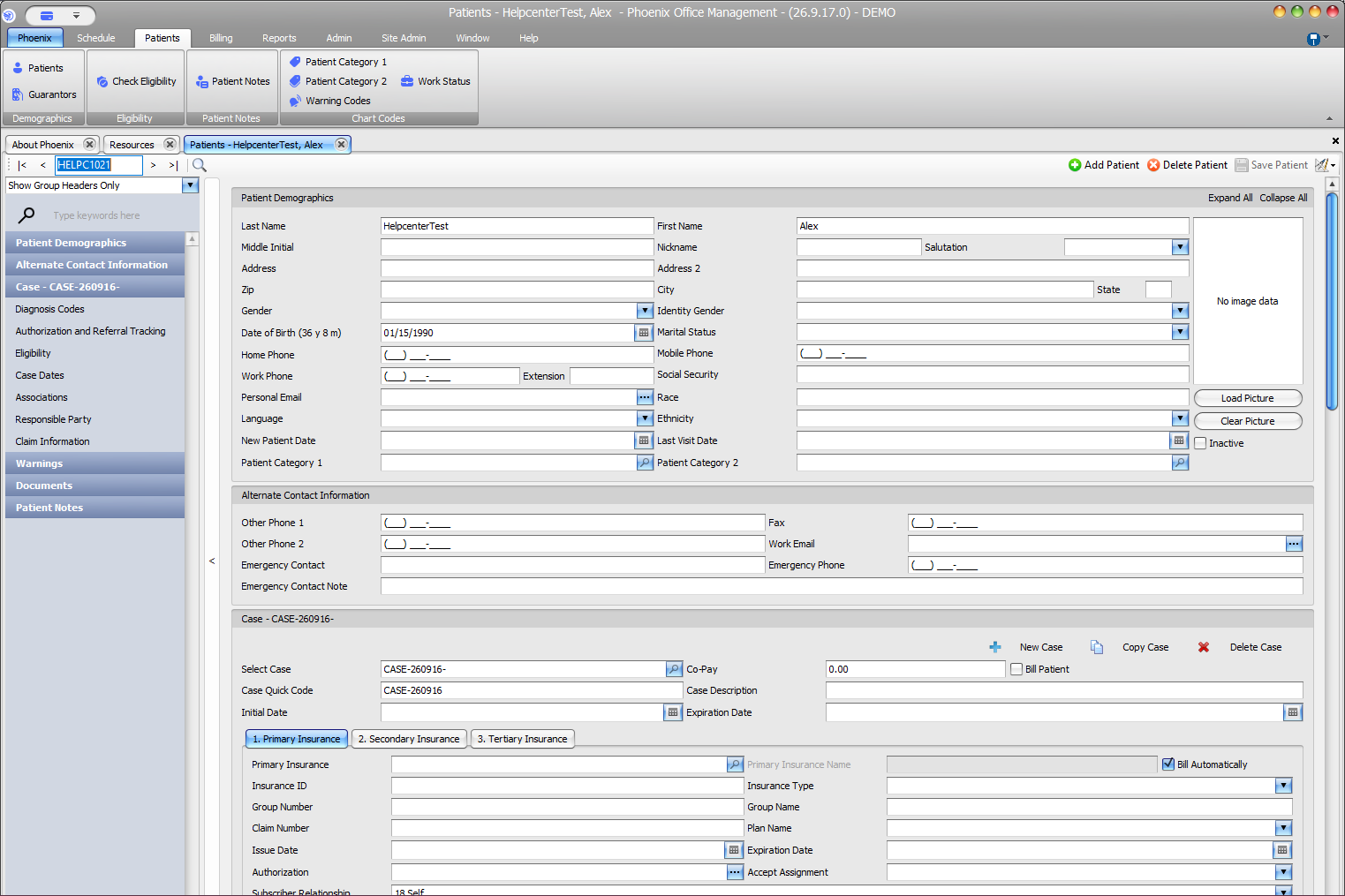
- Open the Patients tab and select Patients.
- Select the magnifying-glass button on the upper-left toolbar to open patient lookup.
- Locate the existing patient and select the correct record.
- Review identifying information before editing, scheduling, or adding insurance.
If you do not immediately find the patient, check the information you are using to search before choosing Add Patient.
Verify before making changes #
- Confirm the patient’s name and date of birth.
- Review the active case when the work depends on case-specific insurance or billing information.
- Check that the patient record you opened matches the person you intend to work with.
Avoid duplicate records
If the patient already exists, use the existing record rather than creating another one. Duplicate records can separate demographics, cases, appointments, and billing information.