
Practice configuration · Providers
Editing Providers #
Update an existing provider’s name, contact information, associations, and identifiers only from verified documentation.
Keyboard shortcuts: In a form, press F2 to save and Esc to close. On data-entry-heavy screens, press Ctrl+↓ for the next layout group or Ctrl+↑ for the previous layout group.
Edit a provider #
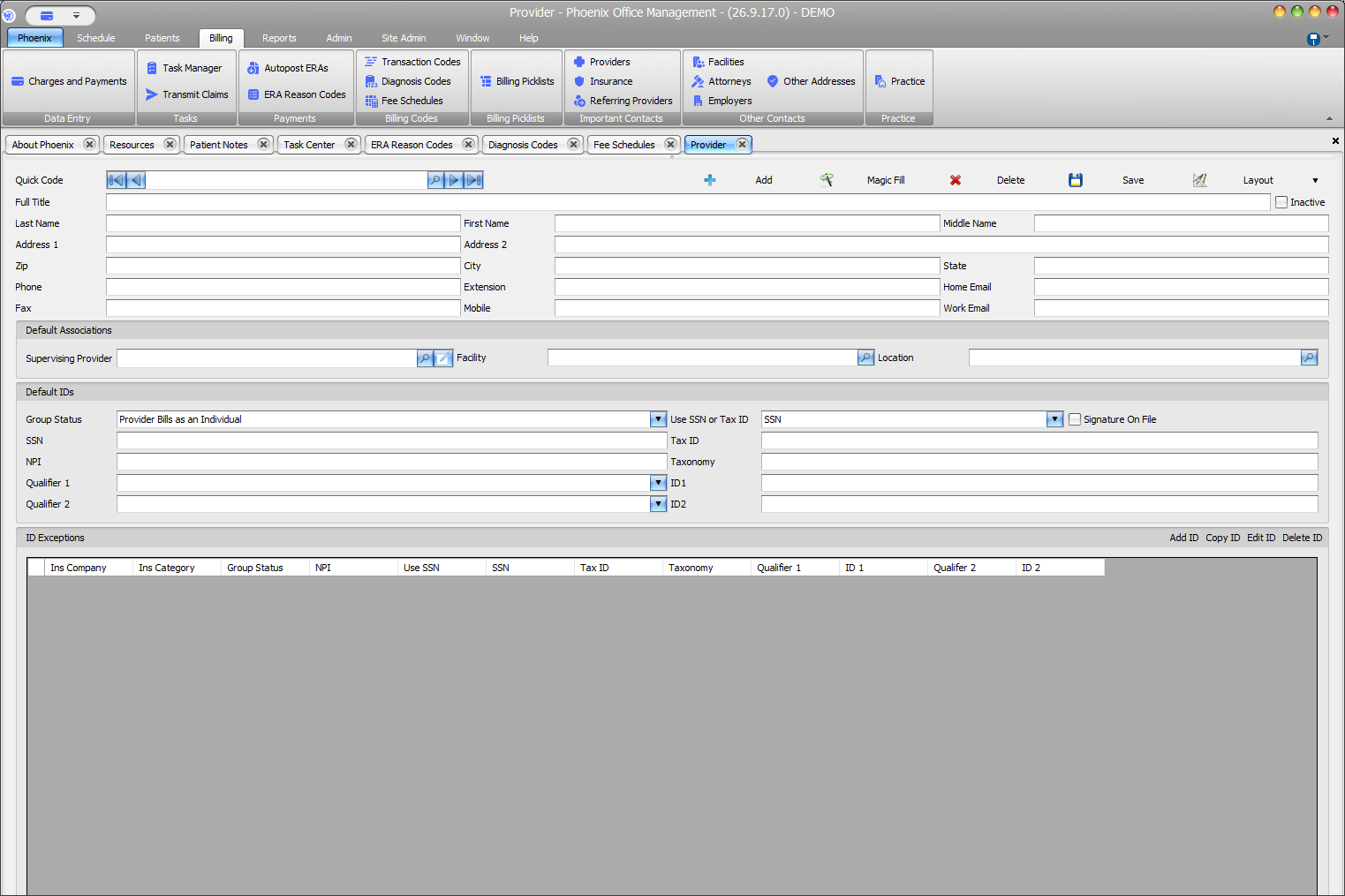
- Select Billing > Providers.
- Locate the provider with Quick Code or record navigation.
- Verify Full Title and name.
- Open the provider record.
- Update only supported fields.
- Review Default Associations and Default IDs.
- Select Save.
Fields to check #
- Name and contact information
- Supervising Provider, Facility, and Location
- Group Status, SSN or Tax ID selection, NPI, and Taxonomy
- Qualifier/ID pairs, Signature On File, and ID Exceptions
ID Exceptions and inactive status #
Select the relevant exception row before using Edit, Copy, or Delete, and verify its Insurance Company and Insurance Category. Change Inactive only when the practice intends to change the provider’s status and has reviewed the operational impact.
Confirm identifiers before saving
The screen lists stored values but does not show how a payer will use them. Compare every identifier change with an approved source.