
Patients · Notes and alerts
Editing Patient Notes #
Edit a patient note only when you are authorized and the existing entry needs an approved correction or update.
Keyboard shortcuts: In a form, press F2 to save and Esc to close.
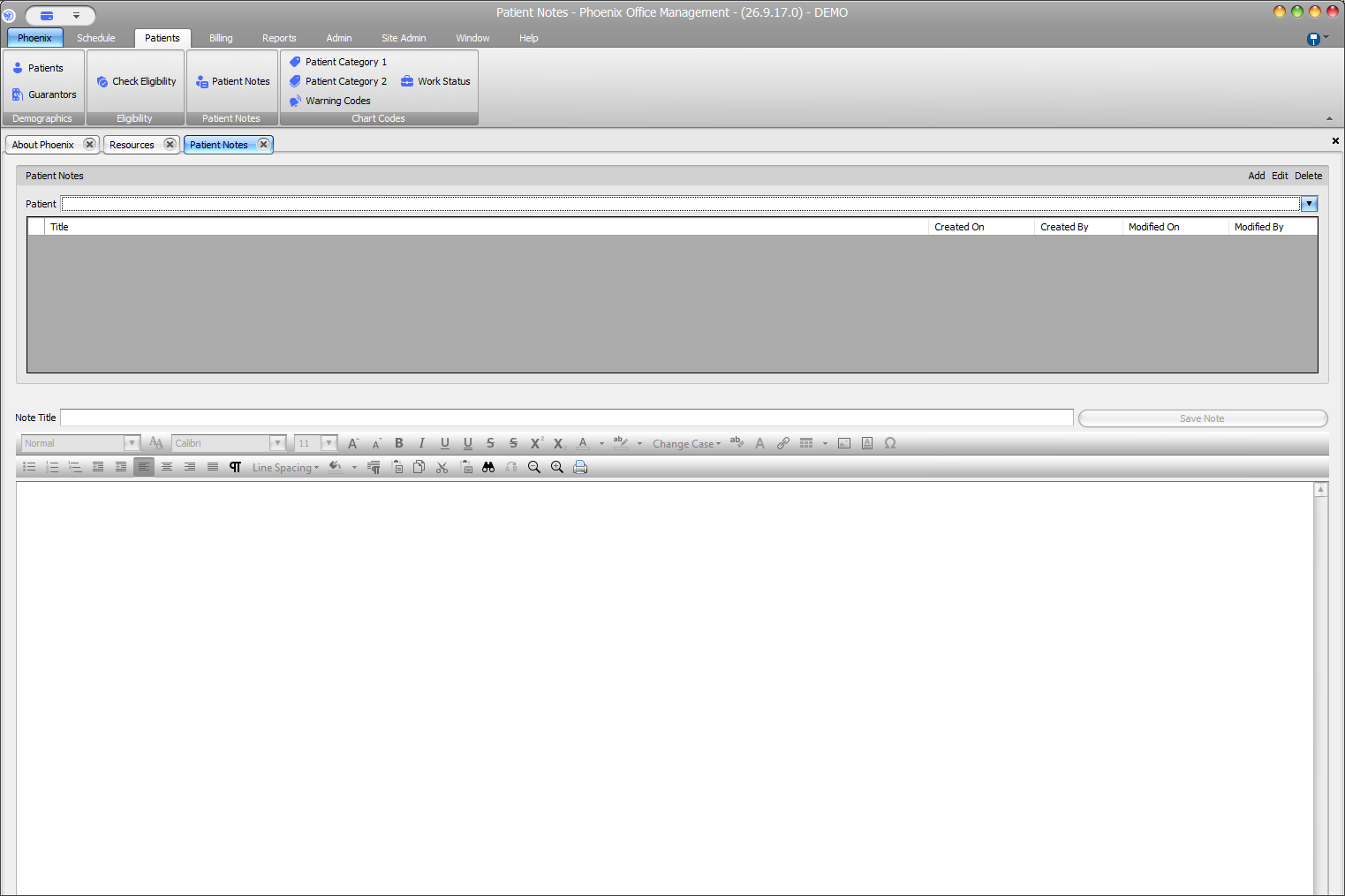
Edit a note #
- Open Patient Notes.
- Select and verify the patient.
- Select the note in the list.
- Select Edit.
- Update the title or note text as needed.
- Review the complete note.
- Select Save Note.
Preserve documentation integrity #
Follow your practice’s policy for corrections. When policy requires an addendum instead of an edit, create the appropriate new note. Phoenix displays created and modified information in the list so users can distinguish the original creation from later changes.
Deleting a note
The toolbar also includes Delete. Delete a note only when authorized and after verifying the patient and selected note, because other users may rely on that information.