
Patients · Demographics
Editing Patient Demographics #
Use Patient Demographics to update the patient information already stored in Phoenix. Verify the patient before entering edit mode and review the changed fields before saving.
Keyboard shortcuts: In a form, press F2 to save and Esc to close. On data-entry-heavy screens, press Ctrl+↓ for the next layout group or Ctrl+↑ for the previous layout group.
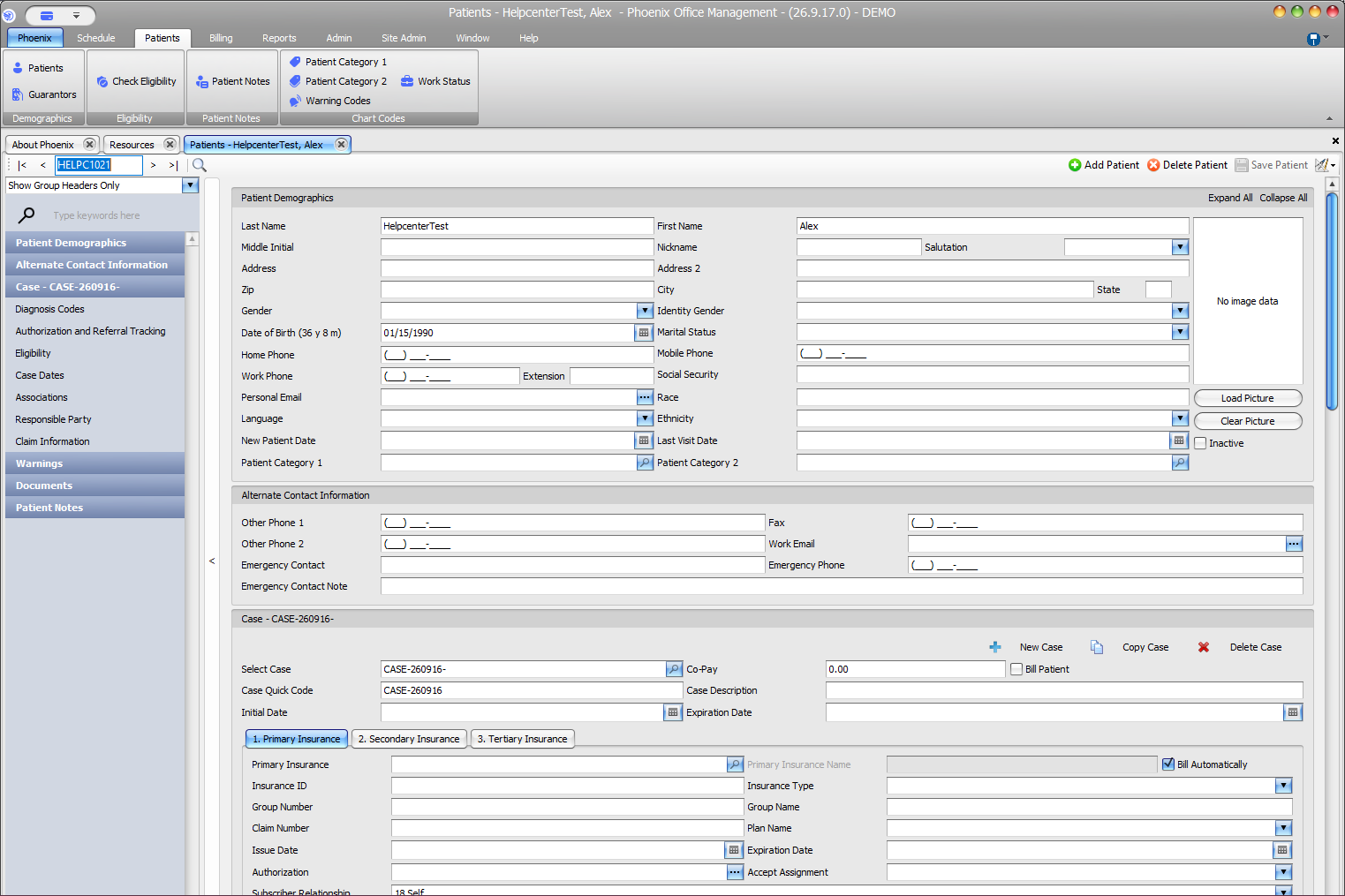
Update demographic information #
- Find and verify the patient.
- Open the patient record.
- Update only the information that needs to change.
- Review the patient’s name, date of birth, contact information, and any other edited fields.
- Select Save Patient.
Common demographic areas #
- Name and date of birth
- Address and ZIP/city/state
- Home, mobile, work, other, fax, and emergency phone fields
- Personal and work email
- Gender, Identity Gender, Marital Status, Language, Race, and Ethnicity
- Emergency contact information
If Phoenix displays a Save Failed message, read the message, correct the item it identifies, and save again.
Keep patient and case information distinct
Patient demographics identify the patient. Case and insurance information below the demographics can vary by billing situation, so do not treat them as the same record.