
Charges & billing · Charge entry
Editing Charges #
Edit a charge only after confirming the patient, case, and exact charge row.
Keyboard shortcuts: Press Ctrl+B to open Charges and Payments. Press F4 to inspect the underlying Transaction Code details when working from a charge. Press F5 to switch the Charges and Payments view.
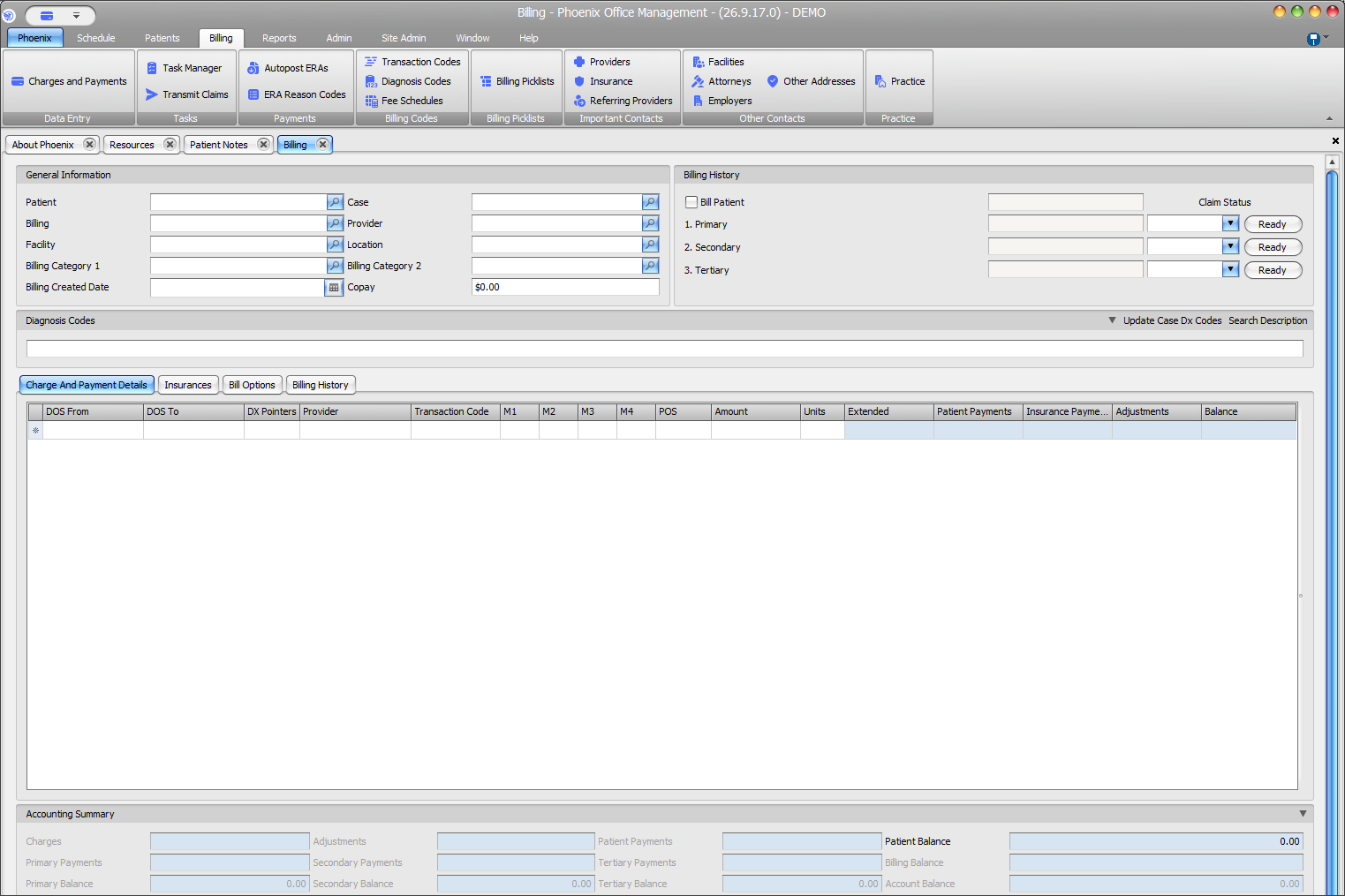
Edit a charge #
- Open Billing > Charges and Payments.
- Select the patient and case.
- Open Charge And Payment Details.
- Identify the row by DOS From, DOS To, Transaction Code, Provider, and Amount.
- Select the row and press Ctrl+E.
- Correct only the wrong fields.
- Review Extended, payments, adjustments, balances, and Accounting Summary.
- Save with F2, then recheck the row.
Protect billing history #
Before changing a charge, determine whether it has been included on a claim or has payments or adjustments associated with it. Follow the practice’s correction workflow when downstream activity exists.
If a field cannot be edited
Confirm that the intended row is selected and your user account is authorized. Do not change claim status or shared code setup merely to make the row editable; escalate the correction when access or history prevents a safe edit.