
Charges & billing · Charge entry
Creating Charges #
Create charges for the correct patient and case. Verify the billing context before adding a row because it becomes part of the patient’s financial history.
Keyboard shortcuts: Press Ctrl+B to open Charges and Payments. Press F4 to inspect the underlying Transaction Code details when working from a charge. Press F5 to switch the Charges and Payments view.
Open the charge record #
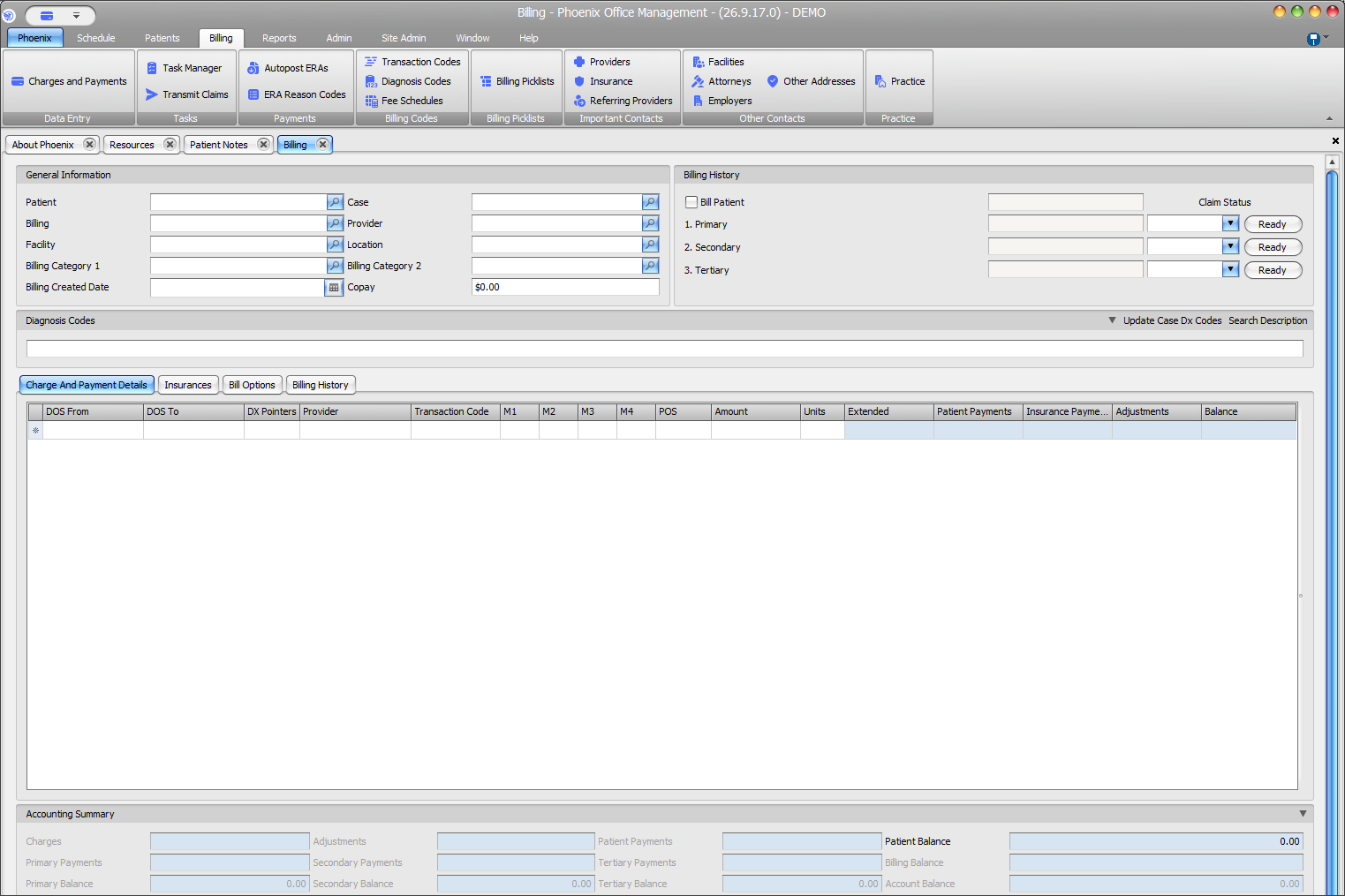
- Select Billing > Charges and Payments.
- Use the Patient lookup to select the patient.
- Use the Case lookup to select the case.
- Confirm Billing, Provider, Facility, Location, and insurance information.
Add the charge #
- Open Charge And Payment Details.
- Add a row with Ctrl+Insert.
- Enter DOS From, DOS To, diagnosis pointers, provider, and transaction code.
- Complete modifiers, POS, Amount, and Units when required.
- Review Extended, balances, and Accounting Summary.
- Save with F2.
Verify before saving
Confirm the patient, case, dates of service, transaction code, provider, units, amount, and diagnosis pointers. A correct charge in the wrong case is still a billing error.
If the amount is unexpected #
Do not replace the amount by guesswork. Verify the transaction code setup and any applicable fee schedule, including its effective dates, before changing the charge.