
Insurance & eligibility · Setup
Editing an Insurance Company #
Edit an existing company record when payer-level information needs to be corrected or completed.
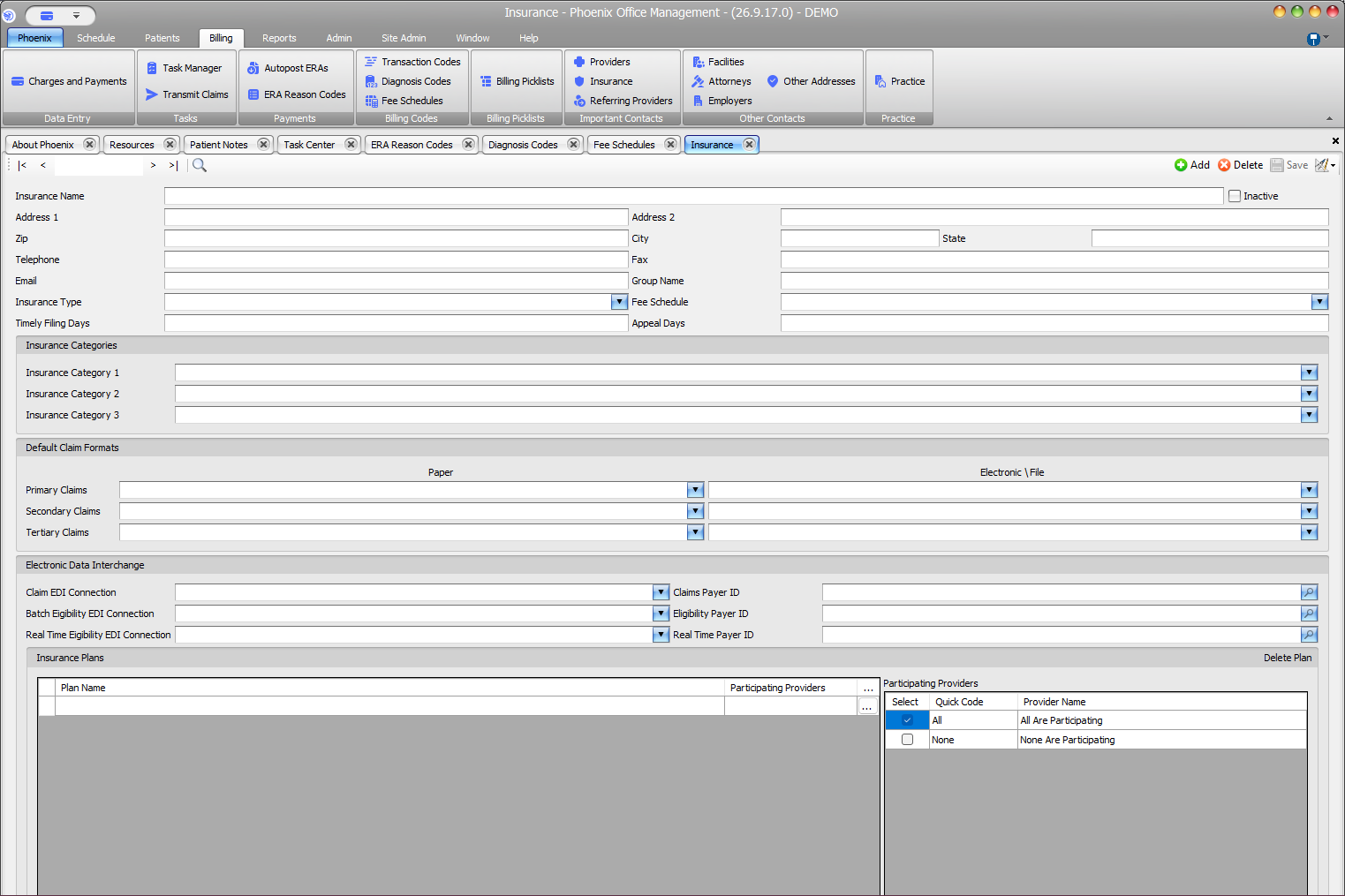
Find and edit the company #
- Select Billing > Insurance.
- Use Search to locate the company.
- Confirm Insurance Name and contact information.
- Press Ctrl+E to make changes.
- Update only verified fields.
The Insurance screen includes company details, categories, claim formats, EDI fields, plans, and participating providers.
Review EDI fields carefully #
Claims Payer ID, Eligibility Payer ID, and Real Time Payer ID are separate fields, each beside its associated EDI connection. Do not copy a value from one field to another unless the supplied information explicitly supports it.
Save and verify #
- Review every changed field.
- Confirm that Inactive reflects the intended status.
- Select Save or press F2.
- Reopen or search for the record and verify the displayed values.
Confirm the exact record
Similar company names can represent separate records. Compare the Insurance Name, address, Group Name, Insurance Type, and categories before editing.