
Charges & billing · Procedure information
CPT Codes #
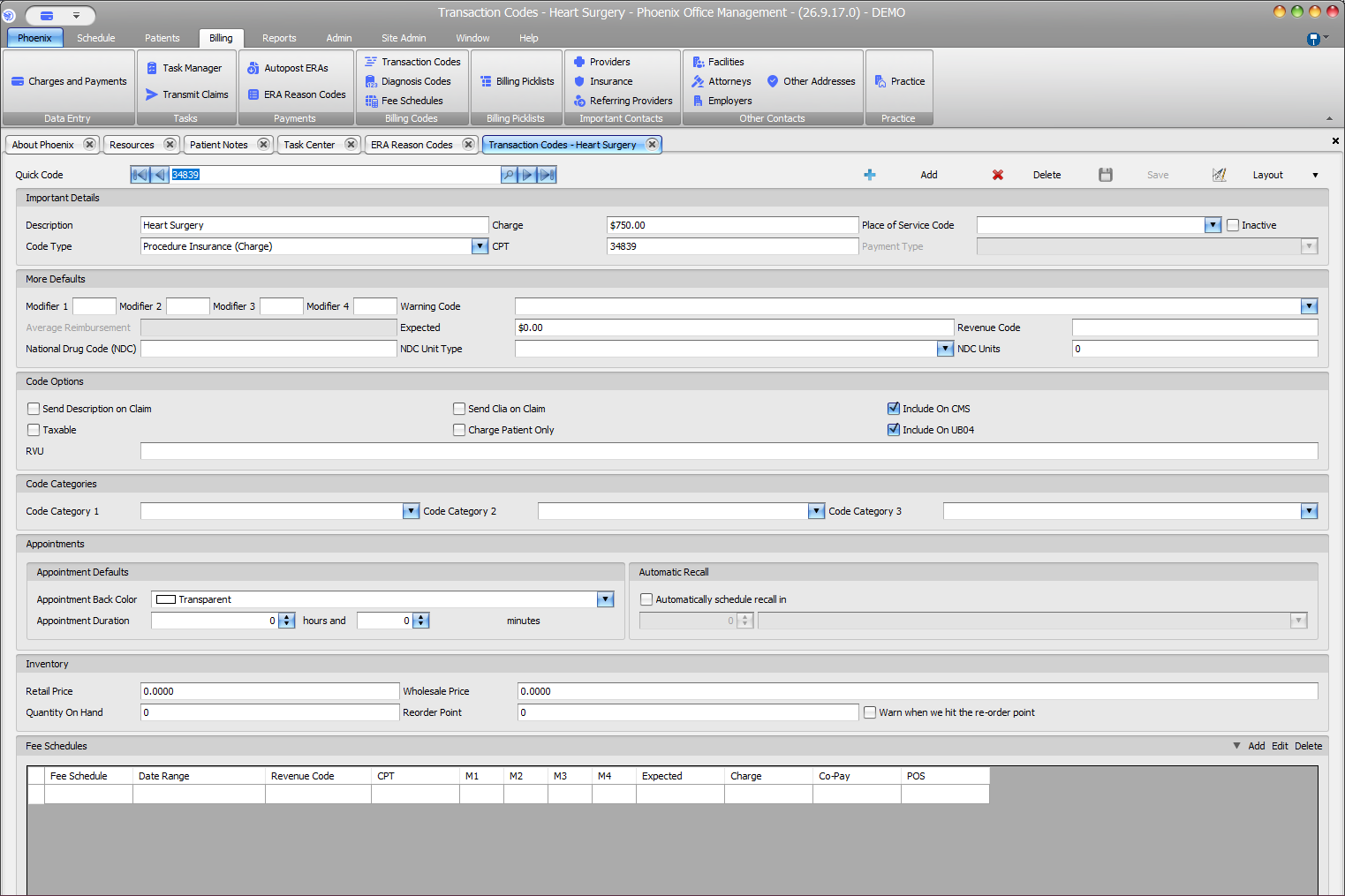
Phoenix displays a CPT field on each Transaction Code record. Review that field in context; Phoenix does not determine whether a code is appropriate.
Keyboard shortcuts: Press Ctrl+B to open Charges and Payments. Press F4 to inspect the underlying Transaction Code details when working from a charge.
Review the Transaction Code #
- Select Billing > Transaction Codes.
- Locate the record using Quick Code navigation or search.
- Confirm Quick Code, Description, and Code Type.
- Review the CPT field beside Charge.
- Treat Place of Service Code and other defaults as separate fields.
Find the code from a charge row #
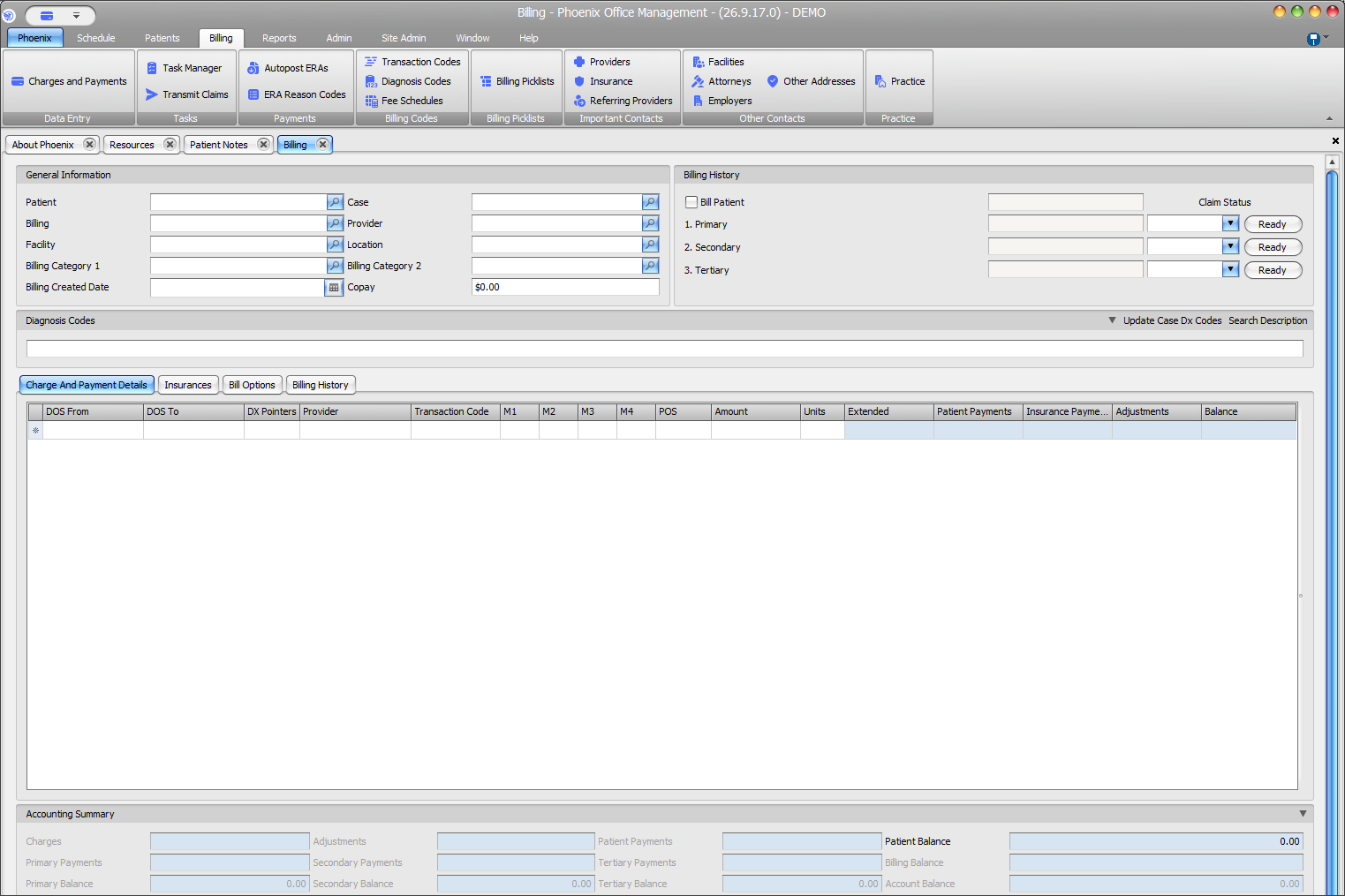
The Charges and Payments grid displays a Transaction Code column but no separate CPT column. Open the associated Transaction Code record when you need to see its CPT setup.
Coding decision required
Follow your organization’s approved coding process when selecting or validating CPT codes.