
Charges & Billing · Charge Troubleshooting
Charge Cannot Be Saved #
When a charge cannot be saved, start with the exact validation message and the fields currently being edited. Do not change unrelated values simply to force the charge through.
What to do #
- Read the complete message Phoenix displays.
- Review the patient/case and date of service.
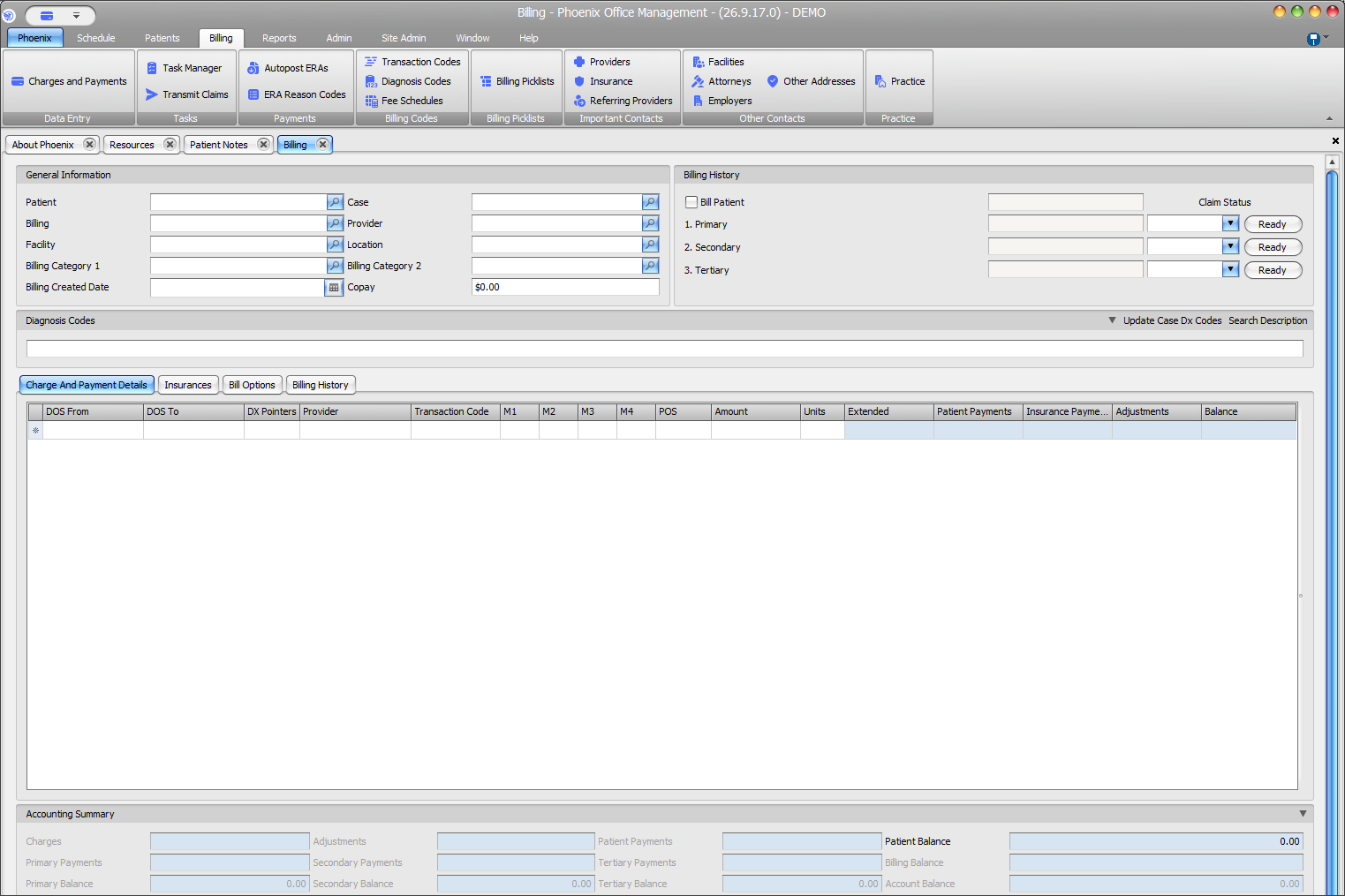
- Check procedure code, units, fee, place of service, modifiers, diagnoses, provider, and facility information as applicable.
- Correct the specific verified problem.
- Try the normal save action again.
Verify before you finish #
- The intended patient/case is still selected.
- Any field named in the validation message was reviewed.
- No placeholder code or fabricated value was entered.
Important
If the message remains unclear, record the exact wording and the steps that produced it for your administrator or PSS Support.