
Patients · Patient insurance
Adding Insurance to a Patient #
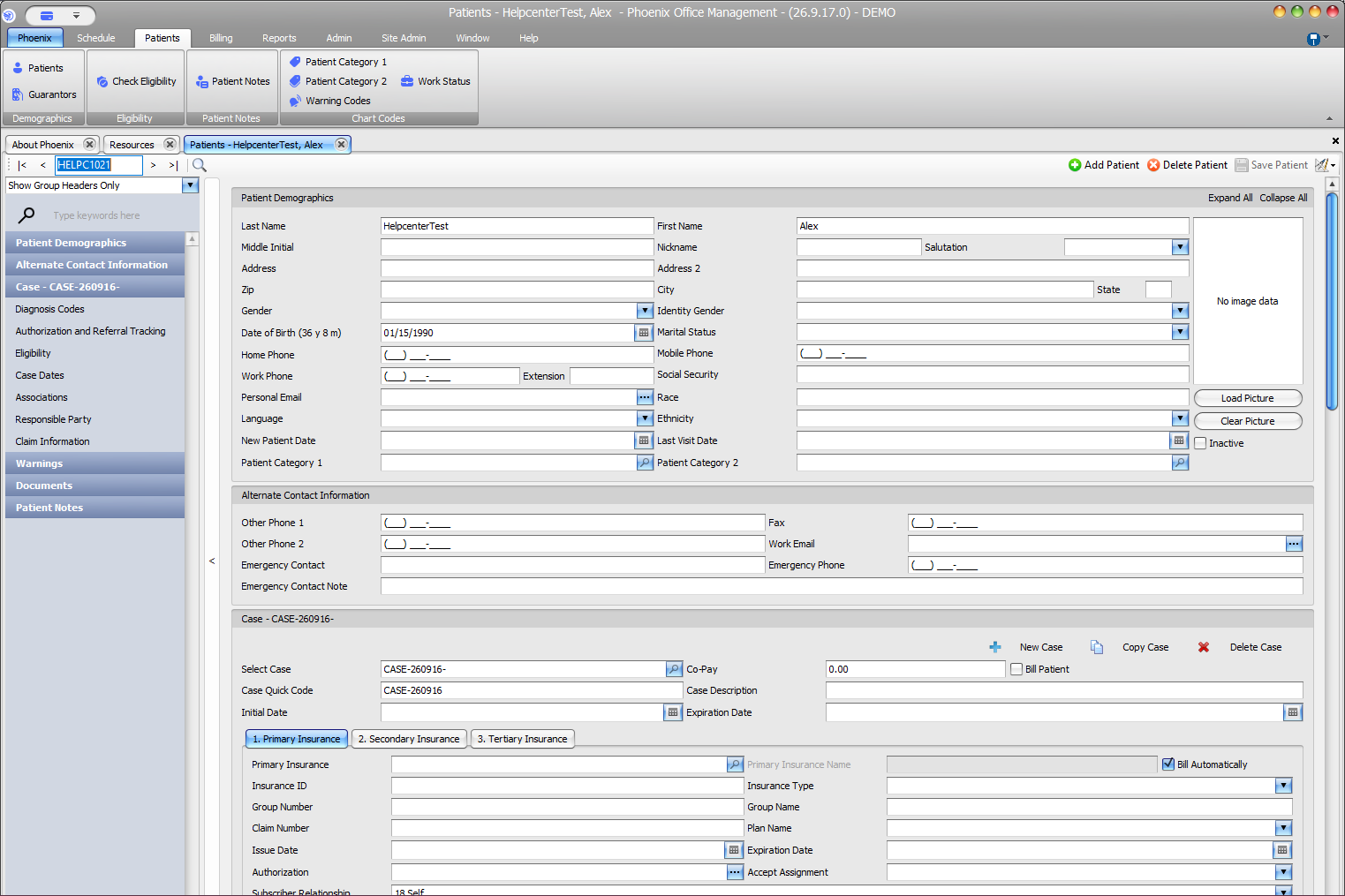
Insurance is attached to the patient’s selected case in the Primary, Secondary, or Tertiary Insurance section.
Keyboard shortcuts: In a form, press F2 to save and Esc to close. In a lookup field, press F3 for Lookup, Insert for Quick Add, or Ctrl+E for Quick Edit. On data-entry-heavy screens, press Ctrl+↓ for the next layout group or Ctrl+↑ for the previous layout group.
Before you begin #
- Find and verify the correct patient.
- Select the correct case.
- Have the insurance card or another approved source available.
Attach the insurance record #
- Find and verify the patient.
- Select the correct case.
- Open the appropriate insurance section.
- Use the Insurance lookup to select an existing company.
- Select the plan when applicable.
- Enter the insurance ID, group information, subscriber information, and applicable dates.
- Review billing and assignment settings.
- Select Save Patient.
Insurance record versus patient coverage #
The Insurance setup record contains payer-level information for the practice. The patient case stores that patient’s policy, subscriber, plan, coverage order, and coverage details. Do not create a new insurance company when the payer already exists.
Verify before saving #
- Payer name
- Member ID and group number
- Subscriber
- Coverage order
- Intended patient and case
Eligibility is a separate check
Coverage dates stored in Phoenix do not confirm current benefits. Use your practice’s approved eligibility workflow when current coverage must be verified.