
NEW PRACTICE SETUP
Get a New Practice Ready for Billing in Minutes #
Setting up a brand-new practice in a billing system can involve a significant amount of data entry before the first patient or charge can be entered.
Phoenix is designed to simplify that process.
By setting up a few key areas in the correct order, you can create the practice, enter the information required for claims, configure your billing codes, and be ready to begin adding patients and charges in just minutes.
This guide walks through the recommended setup process for a brand-new Phoenix practice.


NEW PRACTICE SETUP
Create the Practice Database #
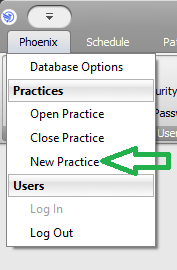
Once you are logged into Phoenix, select:
Phoenix > New Practice
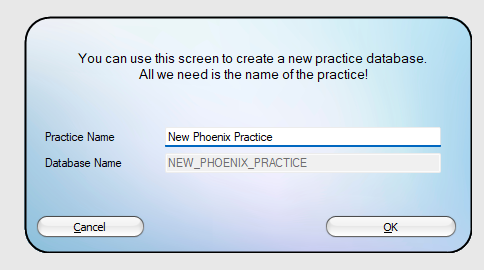
Phoenix only needs one piece of information to get started: the Practice Name.
Enter the name of the new practice and press Enter or select OK.
Phoenix will automatically:
- Create the new practice database.
- Add the currently logged-in user to the database.
- Log that user into the new practice.
There are no additional database-creation steps required.
After the practice is created, look at the top of the Phoenix window. Phoenix displays both the current software version and the practice you are currently working in.
This provides a quick way to confirm that the new practice has been created and opened successfully.
NEW PRACTICE SETUP
Add the Practice’s Billing Information #
The next step is to enter the practice information that will be used on claims.
Go to:
Billing > Practice
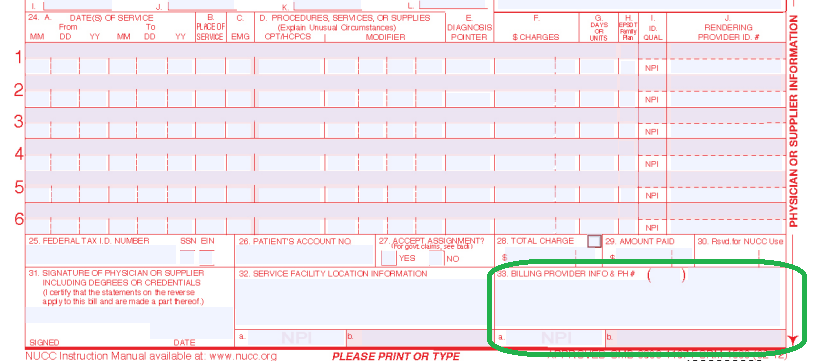
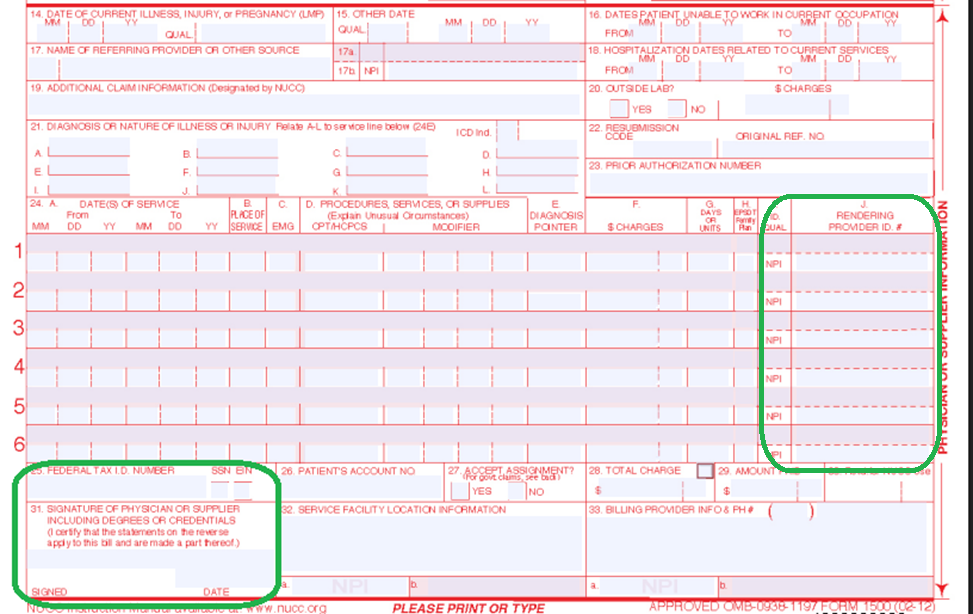
The information entered here is used for the billing-provider information represented in Box 33 of the CMS-1500 claim form.
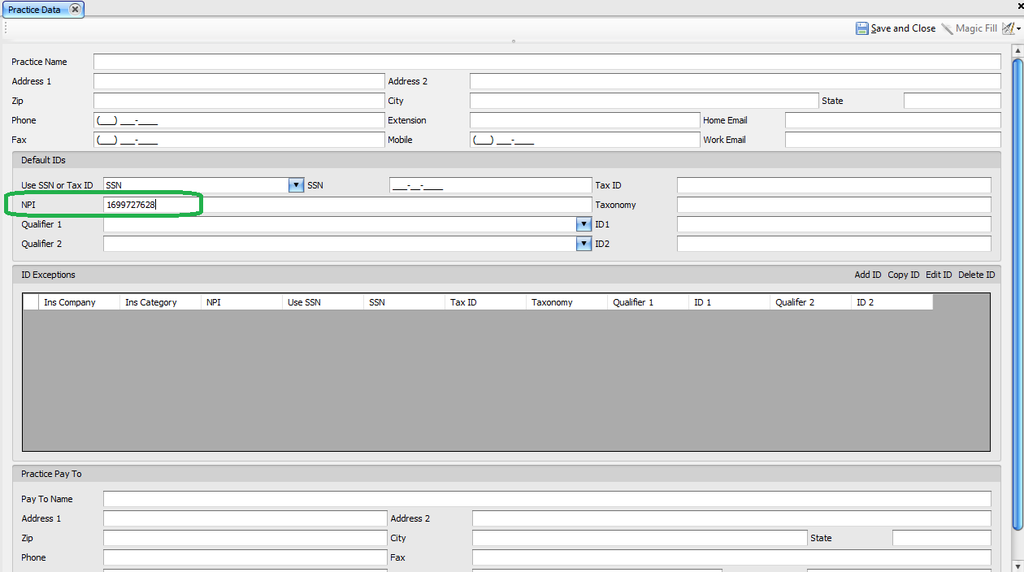
Phoenix includes integration with the National Provider Identifier (NPI) Registry to reduce the amount of information you need to enter manually.
If you know the practice NPI:
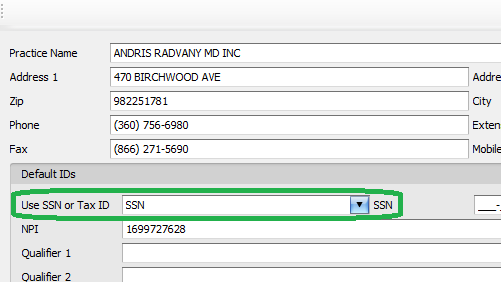
- Enter the NPI.
- Press Enter or Tab.
- Phoenix will query the NPI Registry and automatically populate the corresponding name and address.
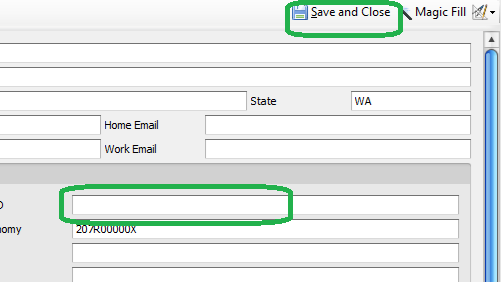
- Enter the correct Tax ID.
- Select Save and Close.


NEW PRACTICE SETUP
Don’t Know the NPI? Use Magic Fill to Find It #
If you do not know the provider’s NPI, you can search for it directly from Phoenix.
The NPI Registry is very large, so Phoenix needs three pieces of location information to narrow the search.
Enter the provider’s ZIP code.
Because Phoenix is also integrated with the U.S. Postal Service, entering the ZIP code automatically fills in the corresponding City and State.
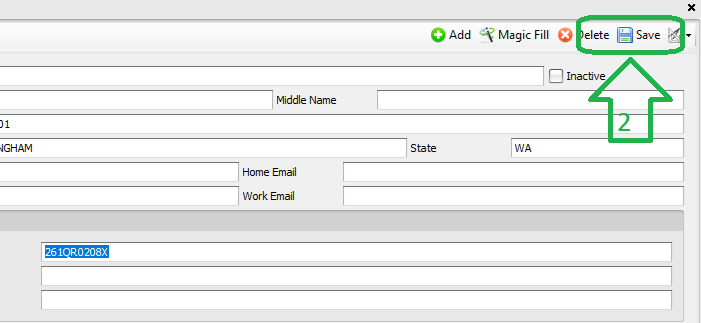
With the ZIP code, city, and state available, the Magic Fill button at the top of the screen becomes available.
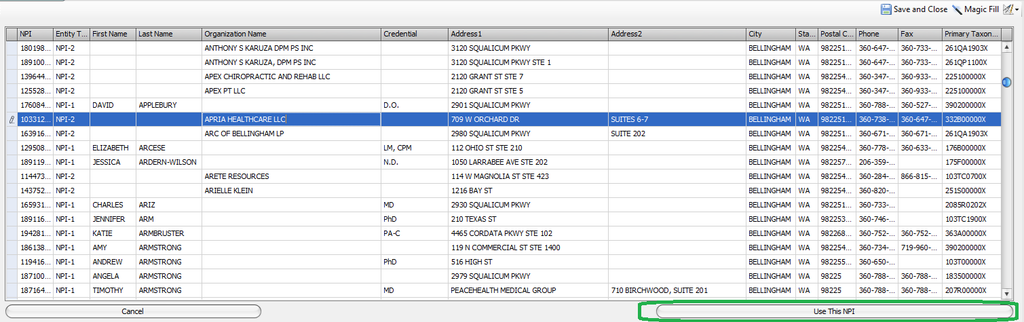
Select Magic Fill.
Phoenix will display the top 200 practices or providers practicing medicine in that ZIP code.
Select the appropriate provider or practice and choose Use This NPI.
Phoenix will populate the available information for you. Enter the correct Tax ID, then save the record.
NEW PRACTICE SETUP
Add Provider Information #
Next, add the providers who will be billing within the practice.
Go to:
Billing > Providers
Provider information entered here affects Box 31 of the CMS-1500 claim form.
The same NPI Registry integration used on the Practice screen is available when adding providers.
For each provider:
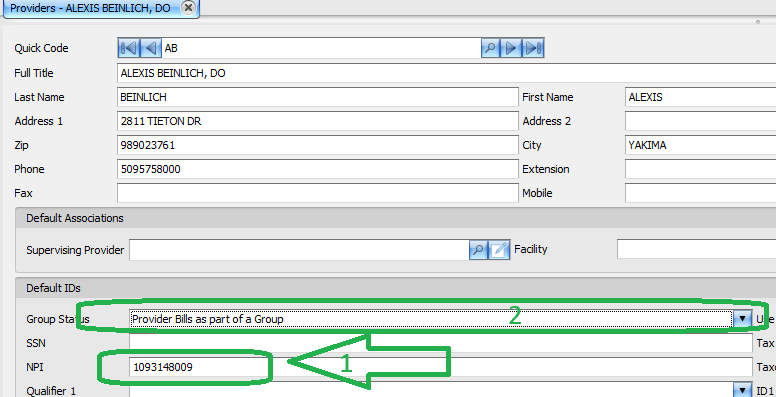
- Enter the provider’s NPI.
- Specify whether the provider is billing as part of a group or as an individual.
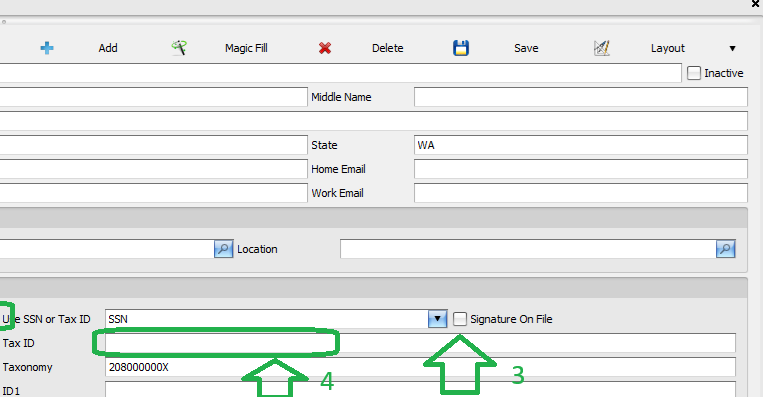
- If you plan to submit claims electronically, the signature on file box must be checked.
- Enter the provider’s Tax ID.
If the NPI entered for the provider is different from the NPI entered for the practice, the provider is billing as part of a group.
If the same NPI is used for both the practice and the provider, the provider is billing as an individual.

NEW PRACTICE SETUP
Signature on File | Don’t Overlook This Setting #
The Provider screen includes an important Signature on File checkbox.
If you plan to submit claims electronically, this box must be checked.
If you plan to print claims on a paper CMS-1500 form and do not want the provider to physically sign Box 31 on every claim, this box should also be checked.
If the provider will physically sign each paper claim, the option can be left unchecked.
NEW PRACTICE SETUP
Add Facility Information #
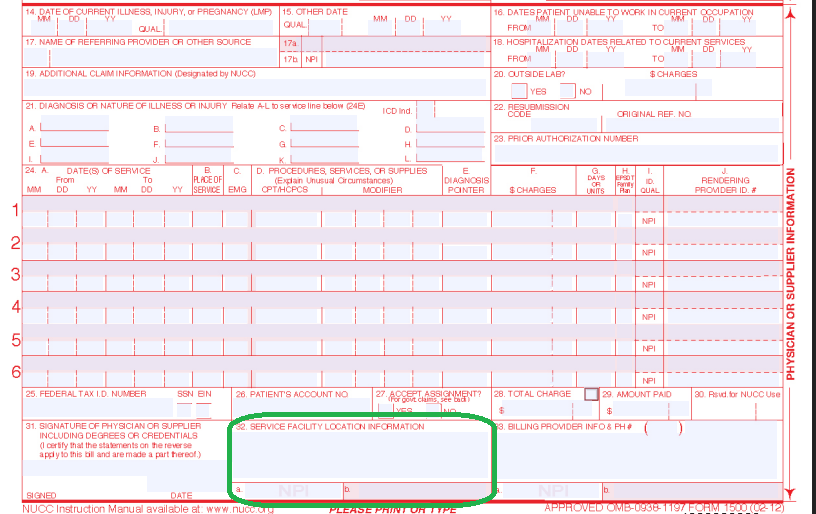
Most paper claims and their electronic equivalents require the facility where services were performed to be identified, even when the facility address is exactly the same as the practice address.
Go to:
Billing > Facilities
Facility information generates in Box 32 of the CMS-1500 claim form.
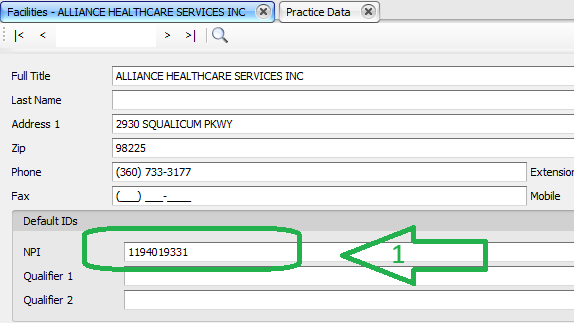
The facility record must include:
- Name
- Address
- 9-digit ZIP code
- NPI
If a group NPI is available, use the group NPI.
The Facility screen works similarly to the Practice and Provider screens.
Enter the NPI and press Enter or Tab. Phoenix will use the NPI information to populate the available facility data.
Unlike the Provider screen, there is no Group selection or Signature on File option to configure.
Once the facility information is complete, select Save.

NEW PRACTICE SETUP
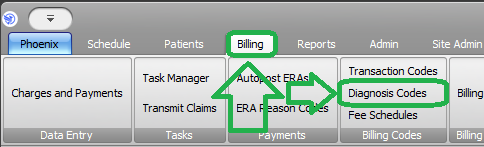
Add Diagnosis Codes #
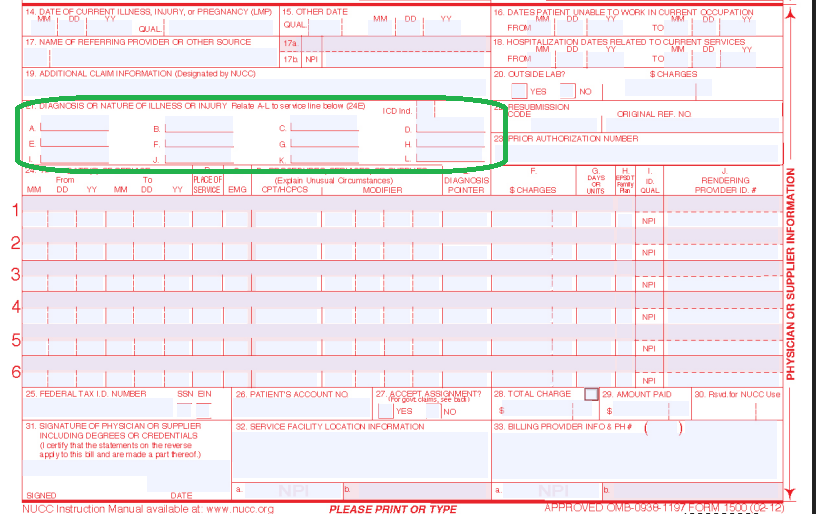
Diagnosis codes entered into Phoenix are used in Box 21 of the CMS-1500 claim form and in the corresponding information on an ANSI 5010 professional electronic claim.
Go to:
Billing > Diagnosis Codes
There are more than 70,000 diagnosis codes, and most practices use only a fraction of them.
For that reason, a brand-new Phoenix practice does not begin with every diagnosis code already loaded into its database.
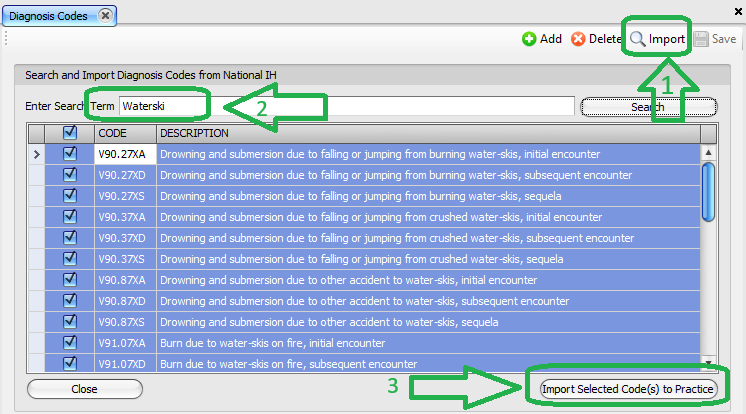
Instead, Phoenix provides full-text diagnosis-code search and integration with the National Institutes of Health (NIH) so that you can import the codes your practice actually needs.
Select Import.
You can search using either:
- All or part of a diagnosis code, or
- All or part of the diagnosis description
For example, entering V22 will search for codes containing V22.
Select the appropriate results and choose:
Import Selected Code(s) to Practice
The selected codes are then available within the practice.
NEW PRACTICE SETUP
Set Your Default Place of Service First #
Before entering your Transaction Codes, you can save repetitive data entry by setting a default Place of Service.
Go to:
Admin > Preferences
Set:
Default POS Code for New Transaction Codes
Once configured, Phoenix can use that Place of Service as the default when you create new Transaction Codes, rather than requiring you to enter it for each code individually.
NEW PRACTICE SETUP
Add Transaction Codes #
Transaction Codes are codes that can be attached to a patient’s financial record.
Most transaction codes you create will be charge codes, and more specifically CPT codes, but Phoenix also uses Transaction Codes for several other billing functions.
A new practice should have the appropriate codes for:
- Charges / CPT procedures
- Patient payments
- Insurance payments
- Adjustments
- Notes