
Administration · Users
Editing Users #
Review and update an existing user’s visible account, practice, and security settings.
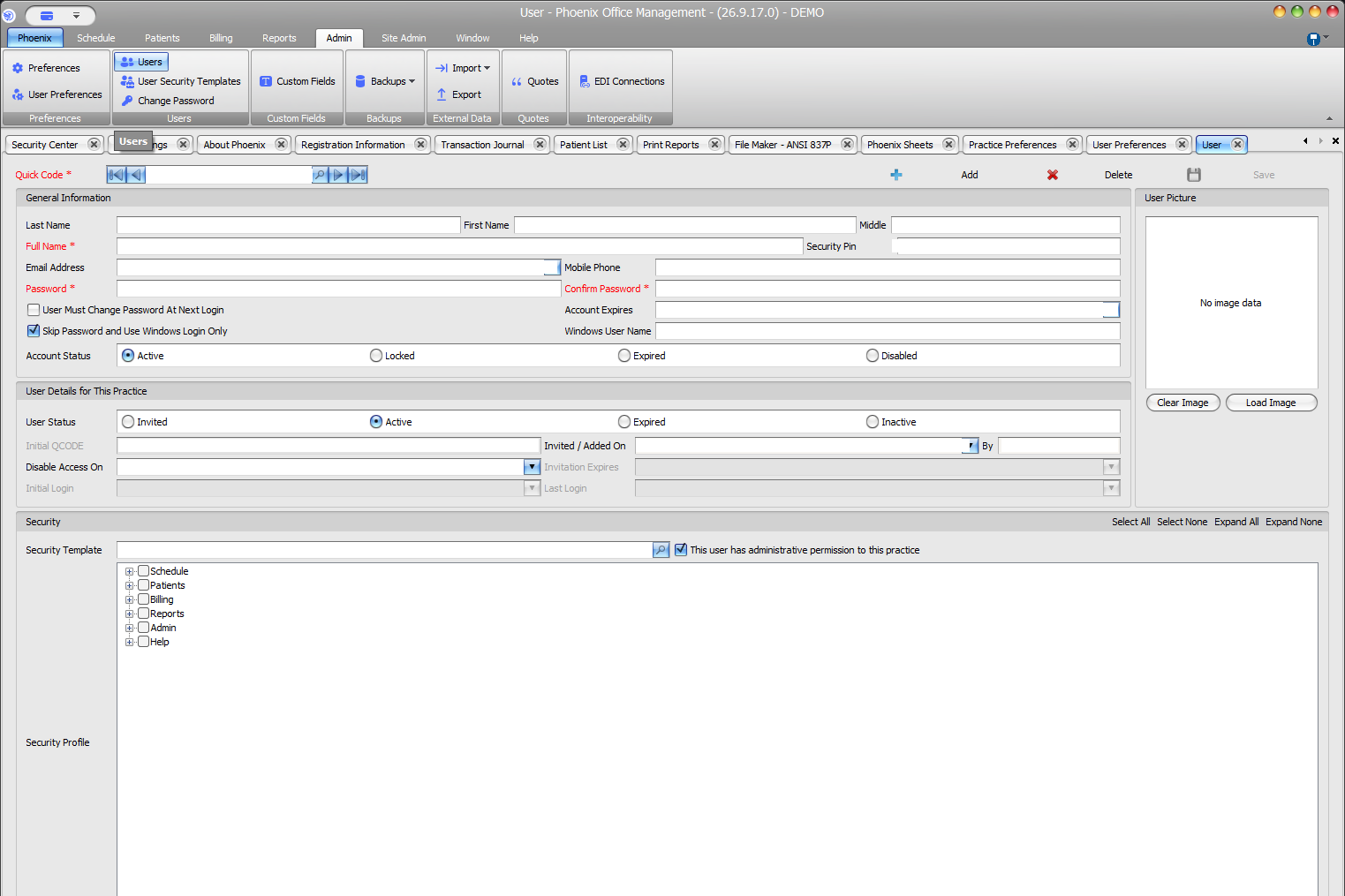
Find and edit the user #
- Select Admin > Users.
- Locate the record using Quick Code or navigation.
- Confirm Quick Code, Full Name, and Windows User Name.
- Press Ctrl+E to edit.
- Change only the intended fields.
- Select Save or press F2.
- Reopen the record and verify both status areas.
Review security and practice details #
- Account Status and sign-in options
- Practice User Status and Disable Access On
- Security Template and permission tree
- This user has administrative permission to this practice
Keep routine profile edits narrow
Do not change password behavior, Windows-only sign-in, account or practice status, or administrative permission unless the request explicitly includes access changes.