
Administration · Users
Creating Users #
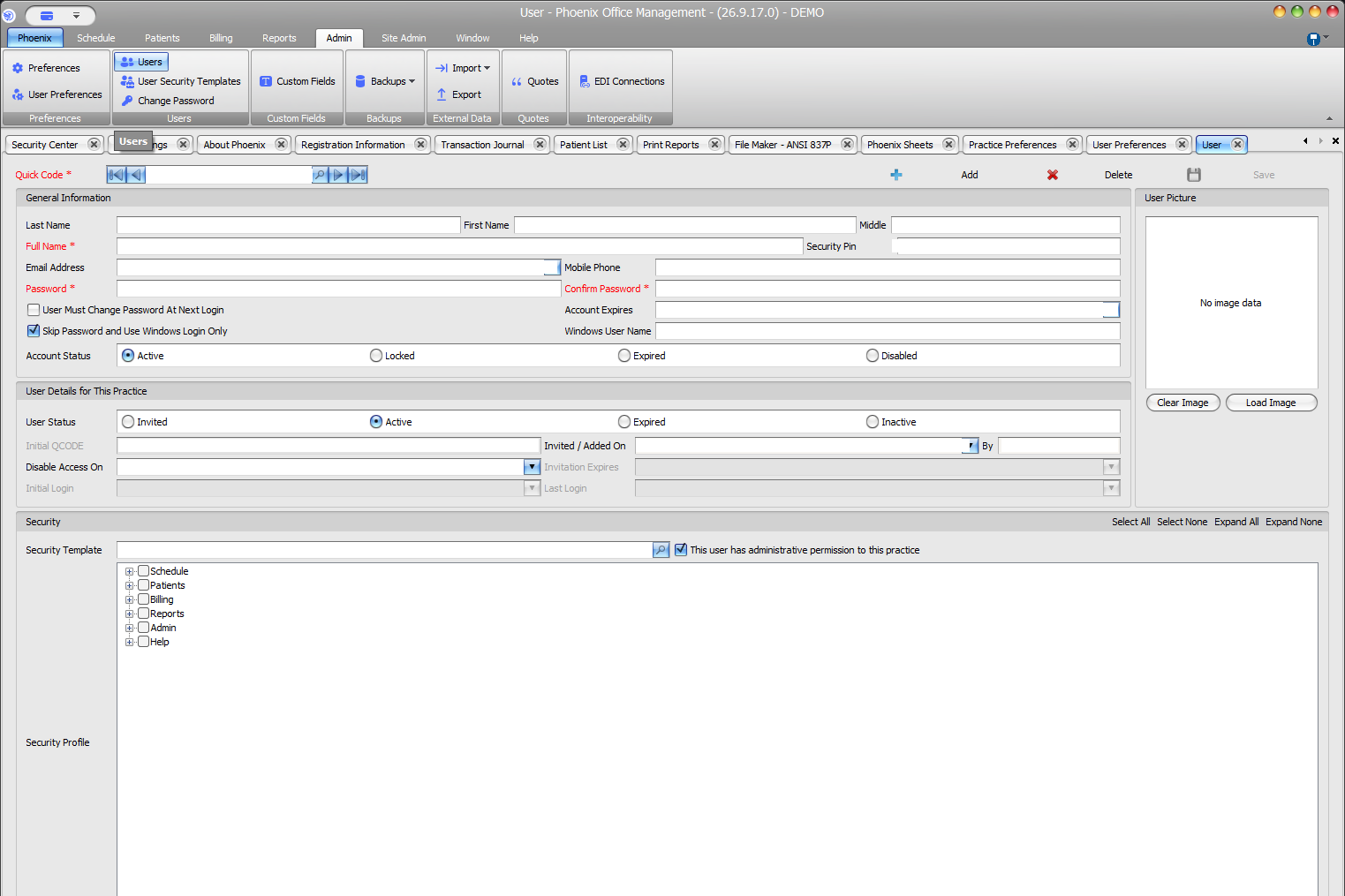
Use the User screen to enter identity, account settings, practice status, and security assignments.
Keyboard shortcuts: In a form, press F2 to save and Esc to close.
Open a new record #
- Select Admin > Users.
- Select Add.
- Enter a Quick Code.
- Complete required fields: Quick Code, Full Name, Password, and Confirm Password.
Review before saving #
- Name, contact, password, expiration, and Windows User Name
- Password-change and Windows-only sign-in options
- Account Status
- Practice User Status and Disable Access On
- Security Template, permission tree, and administrative permission
Save and verify #
Select Save, then reopen the record and confirm Quick Code, account status, practice user status, Security Template, and the administrative-permission checkbox.
Access controls are separate
Password options, Windows-only sign-in, Account Status, practice User Status, and administrative permission are distinct. After creating the user, assign only the practice access and permissions they need.