

Changing your TriZetto SFTP Password
If your TriZetto SFTP password expires (every 60 days) or needs to be changed, you will need to update it in two places:
- The TriZetto website
- Validator / PSS Software Suite
Both locations must contain the same password for claim transmission and ERA downloads to continue working properly.
What Is an SFTP Password?
SFTP stands for Secure File Transfer Protocol. It provides a secure method for transferring files between systems over the internet.
PSS Software Suite uses your TriZetto SFTP credentials to:
- Send electronic claim files to TriZetto
- Download reports
- Download Electronic Remittance Advice (ERA) files
These functions can also be performed through TriZetto’s website, but configuring the SFTP connection allows them to be handled directly from within PSS Software Suite.
Step 1: Change Your Password in TriZetto
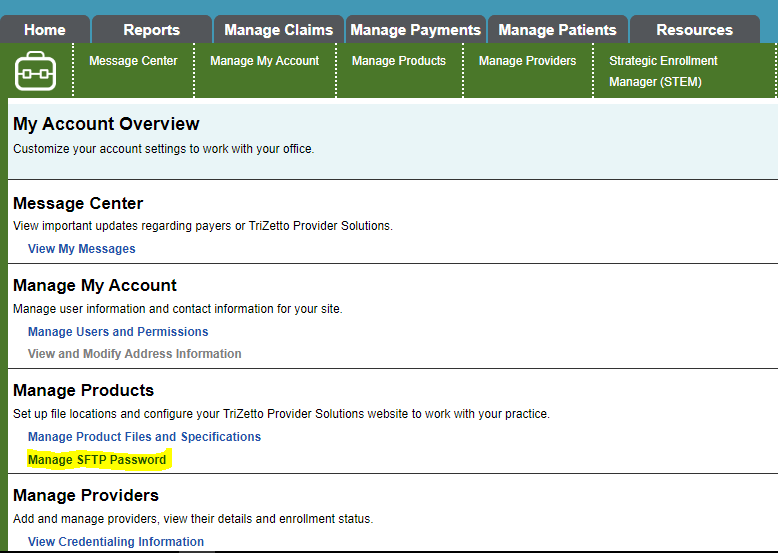
Log in to the TriZetto website and navigate to:
My Account → Manage Products → Manage SFTP Password
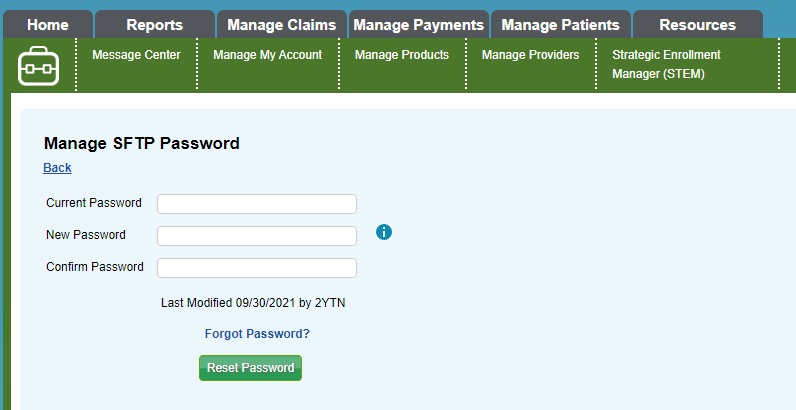
Select Manage SFTP Password.
You will be asked to enter:
- Your current SFTP password
- Your new password
- Your new password again for confirmation
Once the new password has been entered, save your changes.
Important: Keep the new password available. You will need to enter the exact same password into PSS Software Suite.
Don’t Know Your Current SFTP Password?
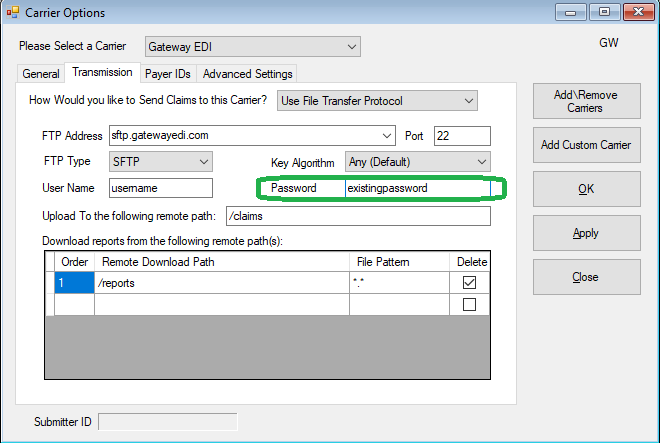
If you do not know the current password, leave the TriZetto password screen open and continue to Step 2. Your existing SFTP password can be viewed from the carrier configuration inside PSS Software Suite.
Step 2: Update PSS Software Suite
Open PSS Software Suite and navigate to:
Settings → Carrier Options
Select Gateway EDI
At the top of the Carrier Options window, confirm that the selected carrier is:
Gateway EDI
If another carrier is selected, choose Gateway EDI from the dropdown menu.
Open the Transmission Tab
Select the Transmission tab.
Your existing SFTP connection information will appear here.
If you needed your current password to complete Step 1, you can retrieve it from this screen and copy it into the TriZetto website.
Next, replace the existing password with the new SFTP password you created in TriZetto.
Click OK to save your changes.
Step 3: Test the Connection
Once the password has been updated in both TriZetto and PSS Software Suite, test the connection before attempting to send claims.
From PSS Software Suite, navigate to:
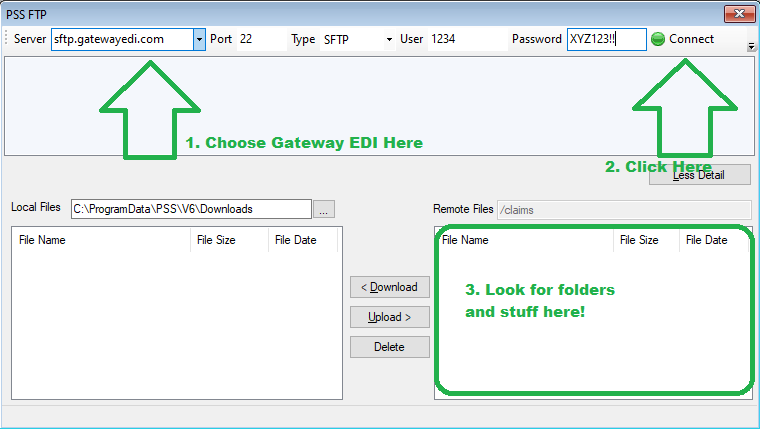
Claims → FTP
Select:
sftp.gatewayedi.com
Then click Connect.
If the Connection Is Successful
Files and folders should appear in the lower-right portion of the FTP window.
Your new credentials are working and PSS Software Suite can communicate with the TriZetto SFTP server.
If the Connection Fails
If you receive an error such as:
Invalid Username or Password
first confirm that the password entered in PSS Software Suite exactly matches the new password saved on the TriZetto website.
Still Having Trouble?
If your SFTP connection is still failing after updating the password in both locations, PSS can help verify your configuration and troubleshoot the connection remotely.